AI PILOT DAILY · PRACTICAL GUIDE · NOVEMBER 12, 2026
A skipped blank label can come from media detection or the print job. Compare the printer’s own test with a known-good document before treating every blank label as the same fault.

Record what changed
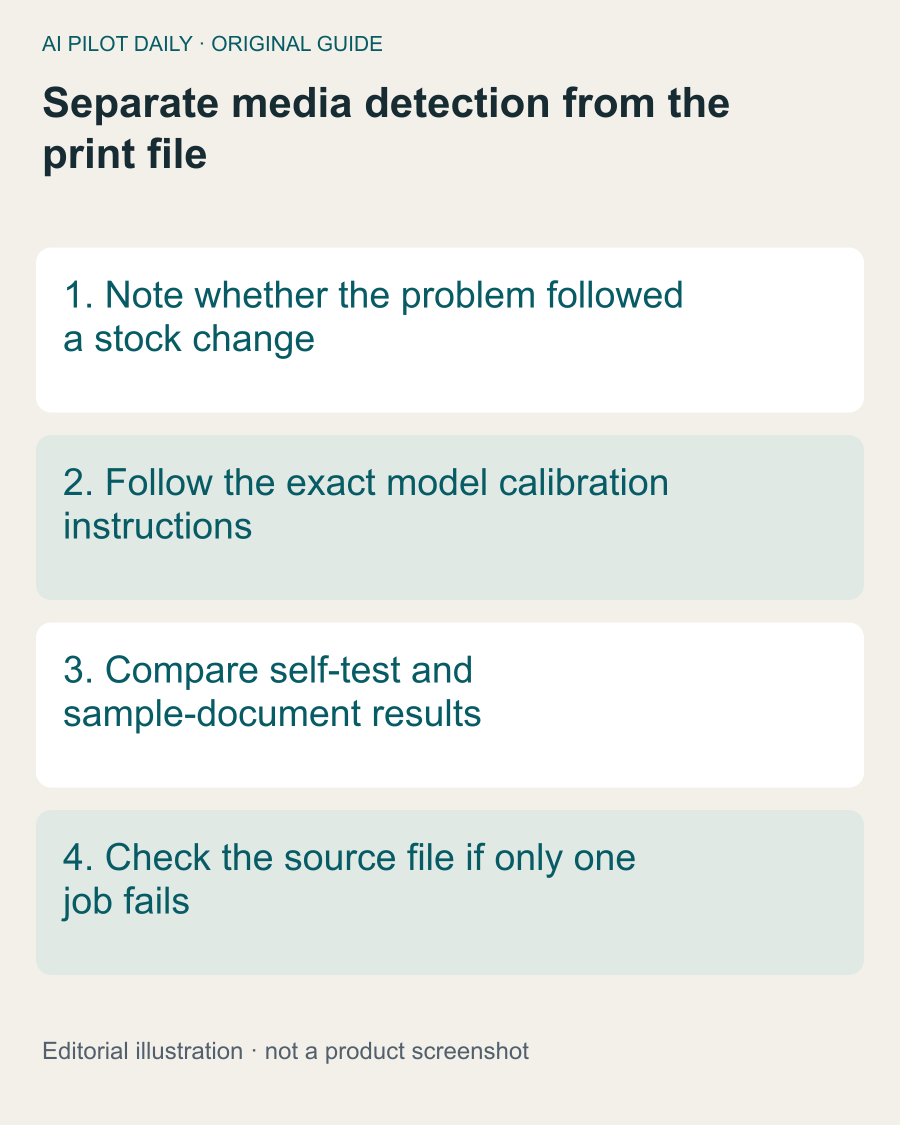
Did the problem begin after a new label pack, a different size, a driver change or a new selling platform? Write that down before changing anything else. The timing does not prove the cause, but it gives you a useful first comparison.
Rollo’s current support guidance links skipped labels to learned label size and media mismatch, and describes calibration and self-testing for the printer. Use those model-specific steps rather than guessing how long to hold a button.
Use two kinds of test
A printer self-test and a document printed from your computer exercise different parts of the workflow. Record whether each succeeds. If the device cannot handle its own test cleanly, changing a marketplace PDF may not address the underlying issue.
If the self-test succeeds and one particular file fails, inspect that file and the job settings. Check for an unexpected page size or an extra blank page. Keep the known-good test result as your reference.
A small comparison log
Use four columns: media pack, test file, settings changed and result. Run one comparison at a time. A log with three controlled tests is more useful than ten prints made after changing several settings together.
Do not keep sending live orders while troubleshooting. Use an appropriate sample so a stray print does not become an accidental duplicate label in the packing workflow.
Check the selected media
Confirm that the dimensions chosen in the print job match what is physically loaded. If you changed stock, follow the manufacturer’s identification procedure. Keep the previous working stock available for comparison when practical.
Do not jump straight to cleaning or disassembly. Where maintenance is necessary, follow current safety instructions for powering down, cooling and approved materials. This article does not replace those instructions.
What to send support
Provide the exact model, the point when the behavior started, whether the self-test succeeds, the sample-document result and the media dimensions. A short video of the feed behavior can help if it excludes customer information.
If the problem occurs only with one file or platform, say so. If it happens with every test, say that instead. The distinction helps prevent repeating irrelevant steps.
The goal is to identify which part of the chain fails, then apply the relevant fix. A blank label is an observation—not enough information on its own to justify replacing the printer.
A common question
Does a blank label prove the printer is broken?
No. Compare media detection, the self-test and the print file before identifying the cause.