AI PILOT DAILY · PRACTICAL GUIDE · NOVEMBER 12, 2026
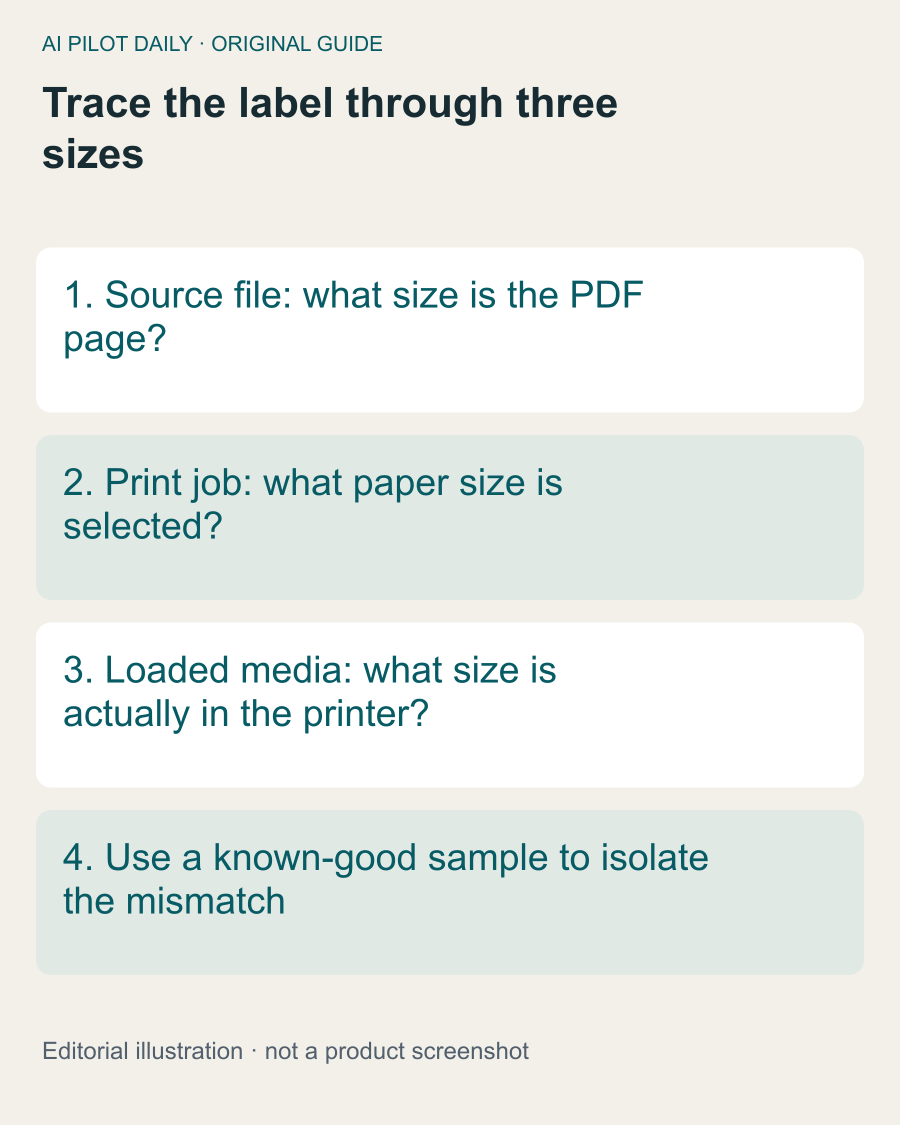
Check whether the label file and print job match the loaded media. A label sitting inside a full letter-size page is not the same as a native 4 × 6 label file.

Inspect the source document first
Open the label and check its page dimensions. A small label image placed on a letter-size PDF can be scaled differently from a PDF whose page itself is label-sized. Looking at the barcode on screen is not enough to establish the document size.
Rollo’s support article recommends checking the platform’s generated label format and testing with its sample label. It also provides platform-specific print settings. Follow the branch for your actual operating system rather than copying an unrelated screenshot.
Change one layer at a time
Keep the source file unchanged while testing a known-good sample. If the sample prints correctly but the platform file does not, concentrate on the generated file and print path. Do not immediately buy different hardware or replace several settings at once.
Write down the starting paper size, orientation and scaling choice. Change one item, print a test and record the result. This gives you a way back if the next change makes the output worse.
Do not apply one scaling rule everywhere
“Fit” and “actual size” can behave differently depending on the source document and print system. The manufacturer’s instructions may distinguish operating systems and scenarios. Match the recommendation to the file you actually have instead of treating a single scaling setting as universal.
If the source platform supports a native label format, generate a fresh sample in that format. Do not assume previously downloaded files change when the platform preference changes.
Check the entire label
Inspect the barcode, address and edges. A label that appears centered can still have an important field clipped. Use a non-sensitive sample when sharing a screenshot with support, or remove personal information without altering the geometry being diagnosed.
Do not stretch individual portions of a shipping label to make it look right. Work through the supported document and print settings so the output remains coherent.
Escalate with useful evidence
If the mismatch remains, provide the printer model, operating system, source PDF dimensions, selected paper size and a description of whether the official sample succeeds. That is more actionable than a photo of a small print without context.
This guide is a diagnostic sequence, not a claim that we tested your exact setup. Stop experimenting when you cannot identify which layer is responsible and use the manufacturer’s current support instructions. A controlled test usually saves more time than a sequence of unrelated resets.
A common question
Should I always use the same scaling setting?
No. Match the file and platform-specific manufacturer guidance; keep a known-good sample for comparison.