
Last verified: 2026-10-29
Affiliate disclosure: We may earn a commission if you subscribe to Helium 10 through our links. Screenshots and workflow notes come from our own signed-in Helium 10 account (English UI, Cerebro on a Diamond-tier account). Codes: AIPILOTDAILY20 and AIPILOTDAILY10 via https://i.helium10.com/jR0Z10. Offers change, so recheck before paying.
Quick answer
Helium 10 Cerebro export keywords means: reverse one ASIN (or seed keyword) → filter the results table → then pull keepers out of Cerebro so you stop burning search quota reloading the same pull. On 2026-10-29 (English UI, Diamond) we ran ASIN B0HF4FK2QS and landed a table of 2,014 filtered keywords with total search volume 1,946,458. From that results UI, the practical export path is: tighten Filters, work the keyword table, then use the table-level Export Data… / download action for your shortlist.
Honesty: these shots are from a Diamond account. Export menus and file formats can vary by plan and Helium UI version. We do not have a dedicated CSV/XLSX dialog screenshot in this pack—so we do not invent one. We show the English home → ASIN entered → volume + filters → keyword table path that leads to an exportable shortlist from the results UI.
| Field | Export takeaway |
|---|---|
| Tool | Cerebro (Plus Magnet) → Find Keywords |
| Demo ASIN | B0HF4FK2QS |
| Keywords before shortlist | 2,014 filtered |
| Total search volume | 1,946,458 |
| Goal of export | Offline shortlist + stop re-running the same ASIN |
| Account for shots | Diamond |
| Export UI honesty | Table / Export Data from results; dialog may differ by plan |
Related: Cerebro tutorial for beginners · Reverse ASIN lookup · Helium 10 Cost · coupon codes.
Ready to try Helium 10?
New checkout codes we verified 2026-10-29:
Monthly: AIPILOTDAILY20 (20% off for 6 months) · Annual: prefer AIPILOTDAILY10 (≈10% forever on our annual test). Confirm on your own summary.
Why export keywords from Cerebro (not just stare at the table)
- Quota — every fresh reverse ASIN costs Cerebro searches. Platinum burns faster than Diamond; either way, reloading “just to look” is expensive.
- Offline shortlists — listing copy, PPC negatives, and Keyword Tracker lists live outside Cerebro. Export once; edit in Sheets/CSV.
- History is not a filing cabinet — Load from History helps, but a dated CSV you own is still clearer for audits and teammates.
- Filters first — exporting all 2,014 rows is legal but noisy. Filter → then export keepers.
If you have never run Cerebro at all, start with the beginners tutorial, then return here for the export-focused path. Deeper reverse-ASIN operator notes: reverse ASIN lookup.
Prerequisites
- Helium 10 account with Cerebro access (screenshots: Diamond, English – EN).
- One competitor ASIN (we used B0HF4FK2QS).
- A folder or Google Sheet ready for the download.
- Optional: Keyword Tracker list name if you will push keepers there after export.
Plan math and coupons: Helium 10 Cost · coupon page via https://i.helium10.com/jR0Z10.
Step 1 — Open Cerebro Find Keywords
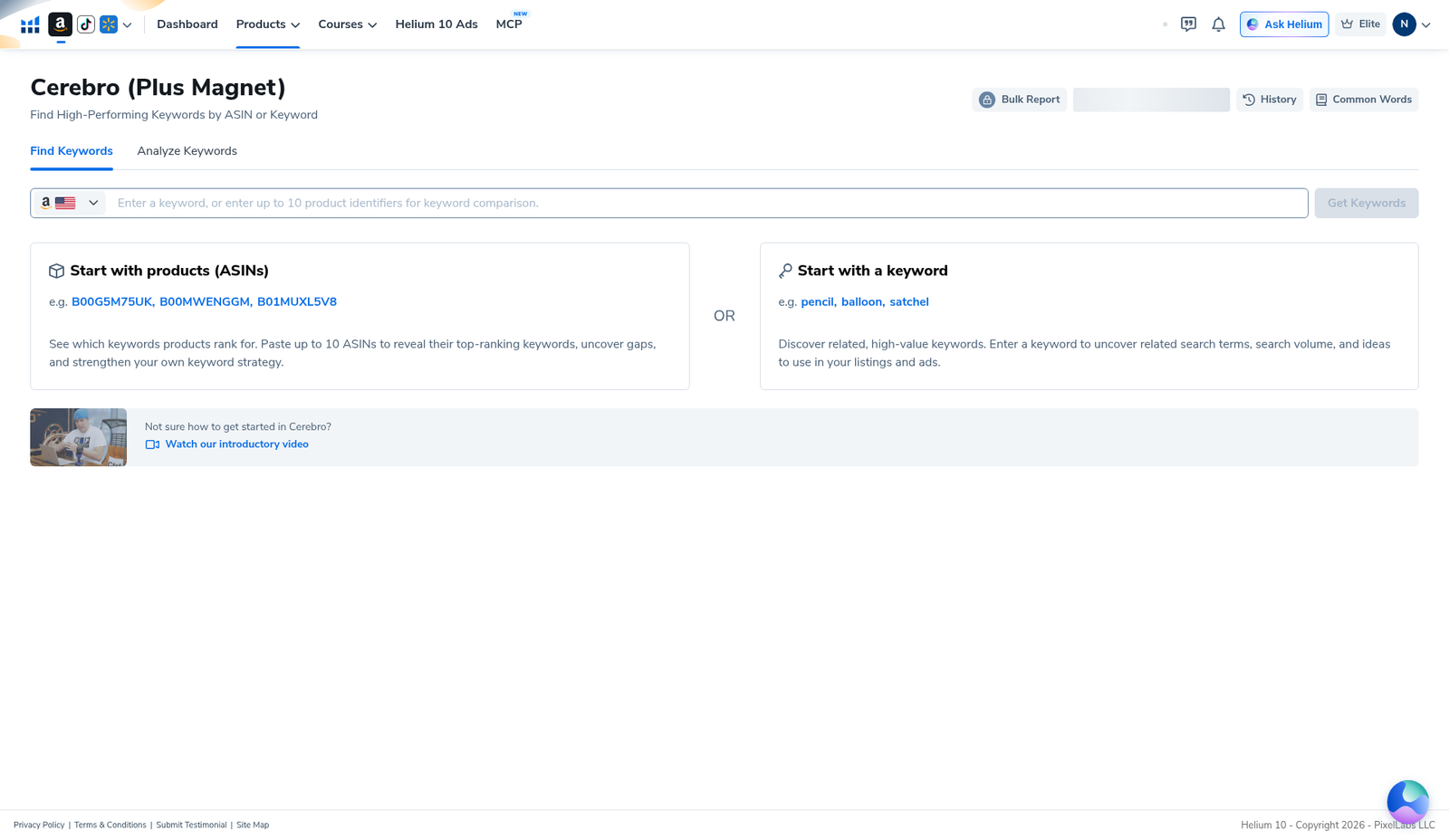
Open Cerebro (Plus Magnet) → Find Keywords. Marketplace should match the Amazon store you sell in (we used US). You cannot export until you have a results table—so start on the empty landing.
Step 2 — Enter one ASIN and get keywords
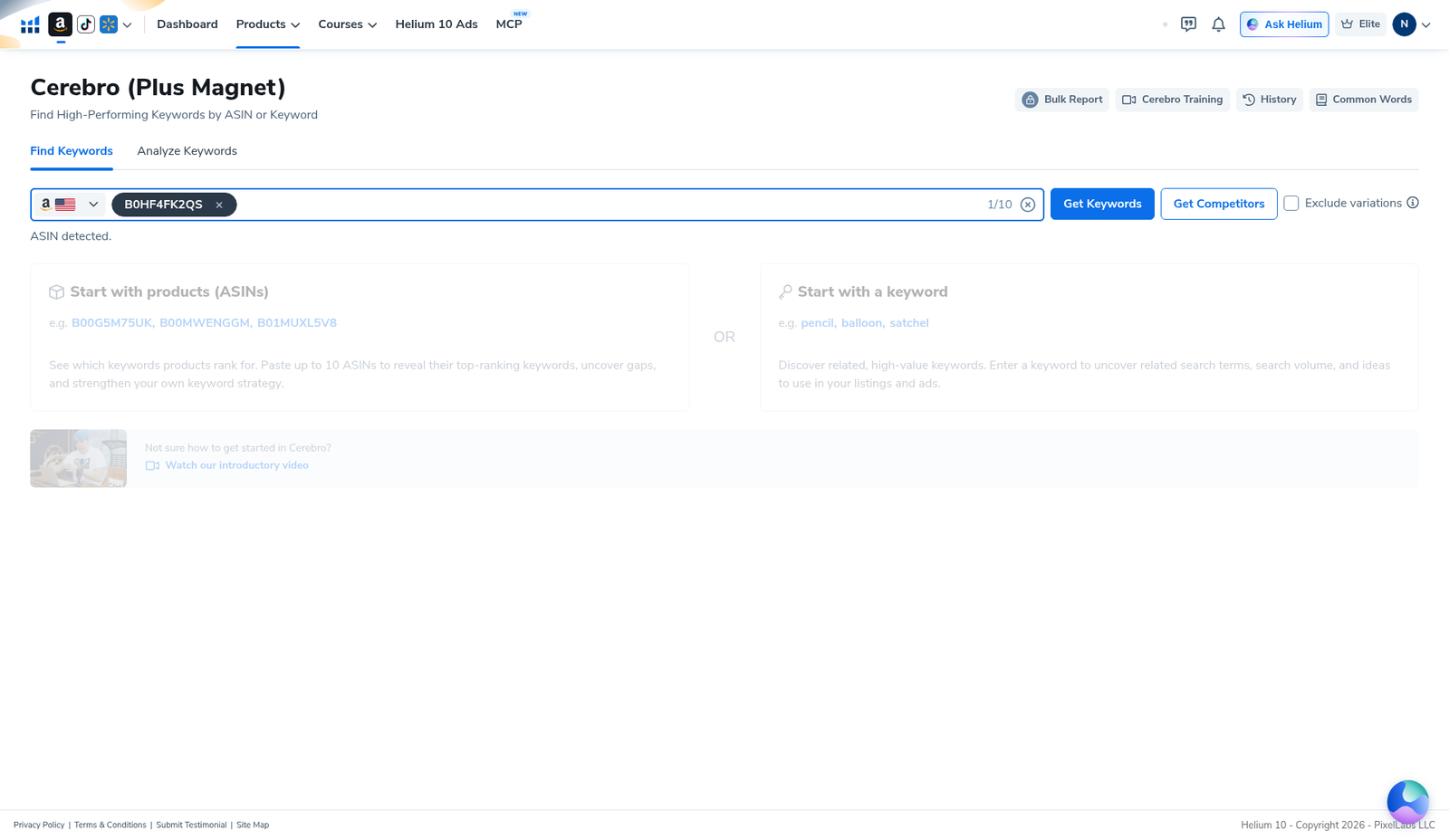
Paste B0HF4FK2QS (or your competitor). Confirm ASIN detected (counter like 1/10), then click Get Keywords. Prefer Load from History when Cerebro offers it and the prior pull is recent—saves quota before you even reach export.
Step 3 — Filter before you export
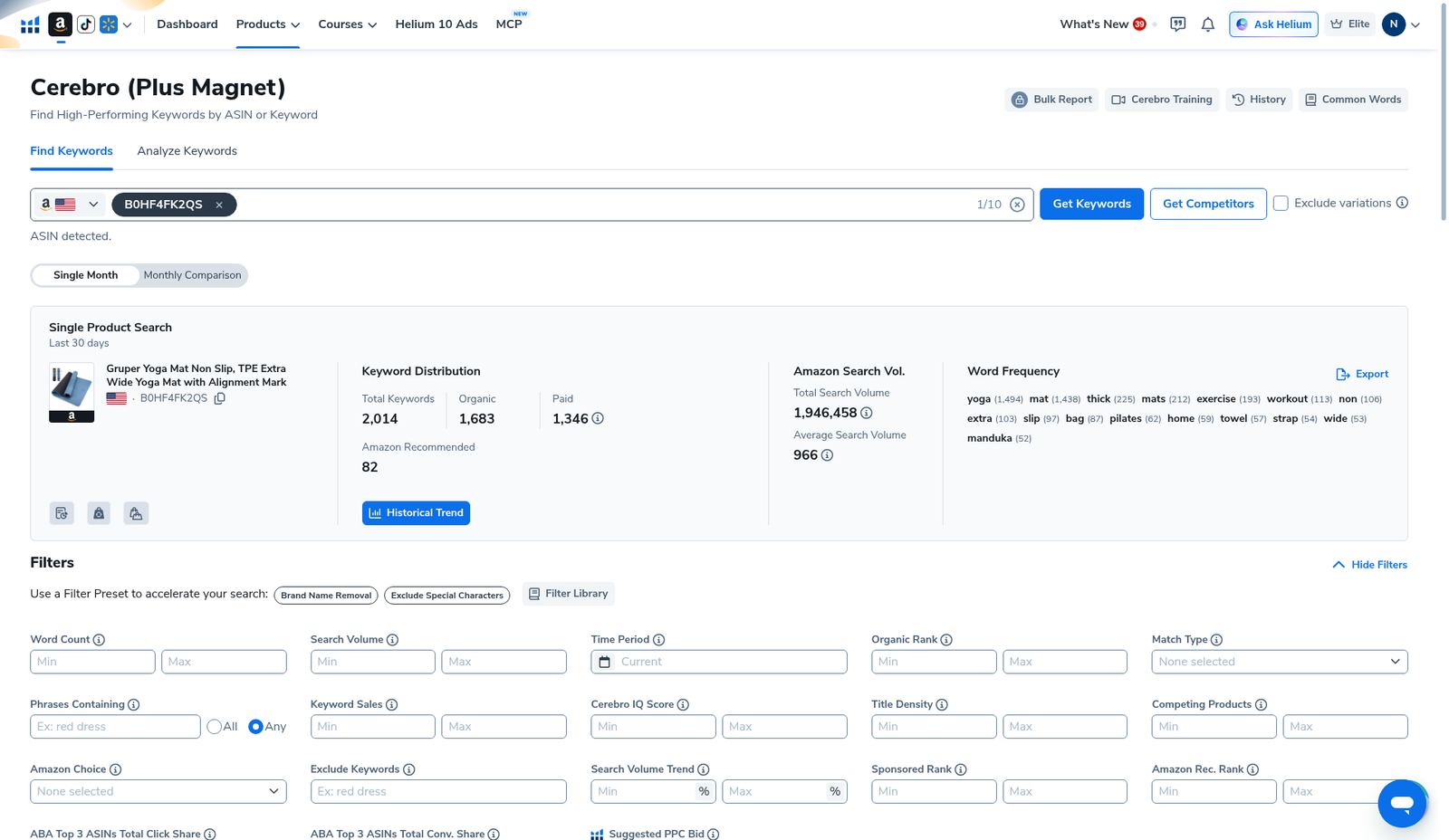
Our pull showed 2,014 keywords and total search volume 1,946,458. Expand Filters and shrink the universe before any download:
- Search Volume — set a floor so dust rows never hit your sheet.
- Brand Name Removal / Exclude Special Characters — turn on early.
- Word Count, Match Type, Cerebro IQ Score, Competing Products — sort hints, not gospel.
- Do not invent values for blurred ABA share cells.
Step 4 — Use the keyword table export path (no invented CSV dialog)
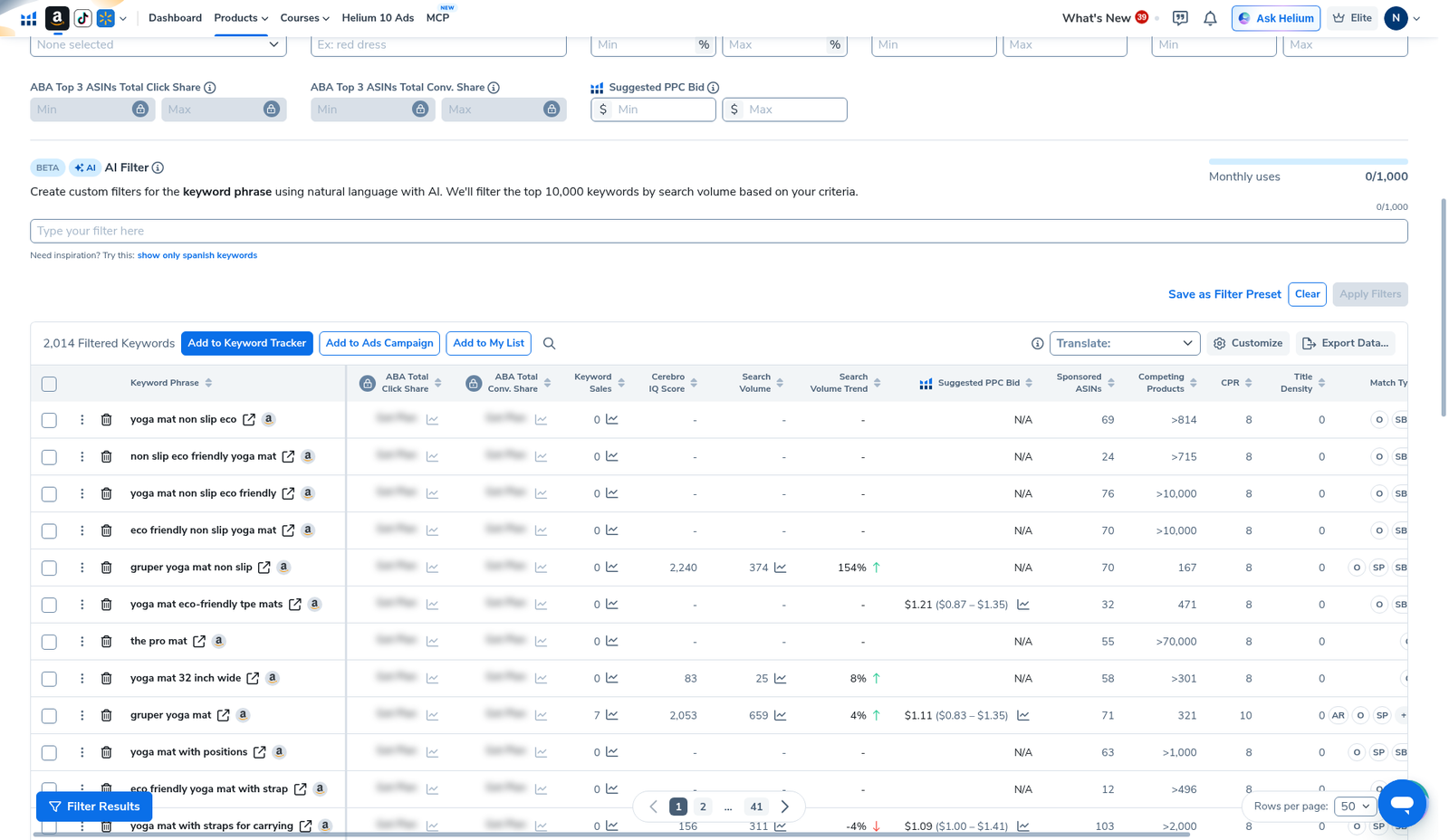
The results header shows filtered keyword count (ours: 2,014 Filtered Keywords). Table actions on our Diamond English UI included Add to Keyword Tracker, Add to Ads Campaign, Add to My List, Translate, Customize, and Export Data….
What we show: the English keyword table with Search Volume, Cerebro IQ Score, Suggested PPC Bid, Competing Products, and Match Type—the working surface you export from.
What we do not invent: a dedicated CSV/XLSX picker dialog. Helium’s export chrome can change by plan and release. On your account, use the table-level export / download control from this results UI after filters are set. If your plan labels it differently (Export, Download, Export Data…), the workflow is the same: filter → export filtered rows → save offline.
After the file lands:
- Keep 20–50 honest product phrases (not every high-SV brand name).
- Park PPC candidates and negatives in separate columns.
- Push only tracked phrases into Keyword Tracker later.
- Do not re-hit Get Keywords tomorrow just to re-read the same ASIN.
Export hygiene (Platinum vs Diamond)
Screenshots here are Diamond. On Platinum, Cerebro search limits hit sooner—so export discipline matters more:
- One ASIN deep → filter → export once.
- Prefer history loads over fresh searches.
- Store dated filenames (
cerebro-B0HF4FK2QS-2026-10-29.csv). - Upgrade when you hit the search wall mid-week—not because a blog said Diamond is required. See Cost and coupons (AIPILOTDAILY20 / AIPILOTDAILY10 via https://i.helium10.com/jR0Z10).
Common export mistakes
- Exporting the raw unfiltered table — 2,000+ rows look complete and teach nothing.
- Skipping filters for “I will clean in Excel later” — you will not; brand noise sticks.
- Re-running Cerebro instead of opening yesterday’s CSV — burns Platinum/Diamond quota for zero new insight.
- Stuffing the full export into the Amazon title — relevance wins; stuffing loses.
- Assuming every plan’s export dialog looks identical — use your results-table export control; do not wait for a tutorial that screenshots a dialog your plan never shows.
What I tested vs what I did not claim
Tested (2026-10-29, English UI, Diamond): Cerebro home; ASIN B0HF4FK2QS entered; results with 2,014 keywords / 1,946,458 total SV; Filters panel; keyword table with export-related actions visible on the results UI.
Did not claim: a universal CSV dialog layout; that every plan exports the same columns; invented blurred ABA cells; that exporting alone ranks you page one. Affiliate only https://i.helium10.com/jR0Z10.
FAQ
How do I export keywords from Helium 10 Cerebro?
Run Find Keywords on one ASIN, open Filters, shrink to a shortlist, then use the results-table Export Data… / download control. We show the English table path from a Diamond account (2026-10-29); your exact dialog may differ by plan.
Do I need Diamond to export?
No. Export is about saving a filtered pull. Diamond gave us more search headroom for the screenshots; Platinum users should export even more carefully so they do not re-spend searches.
Should I export before or after Keyword Tracker?
Filter and export (or Add to Tracker) after you trust the shortlist. Dumping 2,000 phrases into Tracker creates noise. Beginner path: Cerebro for beginners.
Is this the same as reverse ASIN lookup?
Same tool, export-focused angle. Reverse ASIN is the ASIN input mode; this page is about getting those keywords out of Cerebro. Full reverse walkthrough: Helium 10 Reverse ASIN Lookup.
Which coupon should I use?
Checkout via https://i.helium10.com/jR0Z10. Notes: AIPILOTDAILY20 (monthly) / AIPILOTDAILY10 (annual)—confirm on your own summary: coupon notes.
CTA
Filter one Cerebro pull today, export the keepers once, and stop re-running the same ASIN. New to the tool? Read Cerebro for beginners next, then the reverse ASIN deep dive. Pricing: Cost. Start here: https://i.helium10.com/jR0Z10 with AIPILOTDAILY20 / AIPILOTDAILY10.

Leave a Reply