
Last verified: 2026-10-29
Affiliate disclosure: We may earn a commission if you subscribe to Helium 10 through our links. Screenshots and workflow notes come from our own signed-in Helium 10 account (English UI, Elite). Codes: AIPILOTDAILY20 and AIPILOTDAILY10 via https://i.helium10.com/jR0Z10. Offers change, so recheck before paying.
Quick answer
Helium 10 Ads (also branded Adtomic, labeled in-product as Helium 10 Ads powered by PACVUE) is Helium 10’s Amazon PPC automation layer: AI bid goals, rules, dayparting, bulk campaign templates, and analytics. On many accounts it sits behind an enable landing—not a live campaign manager—until you turn Ads on and connect advertising access.
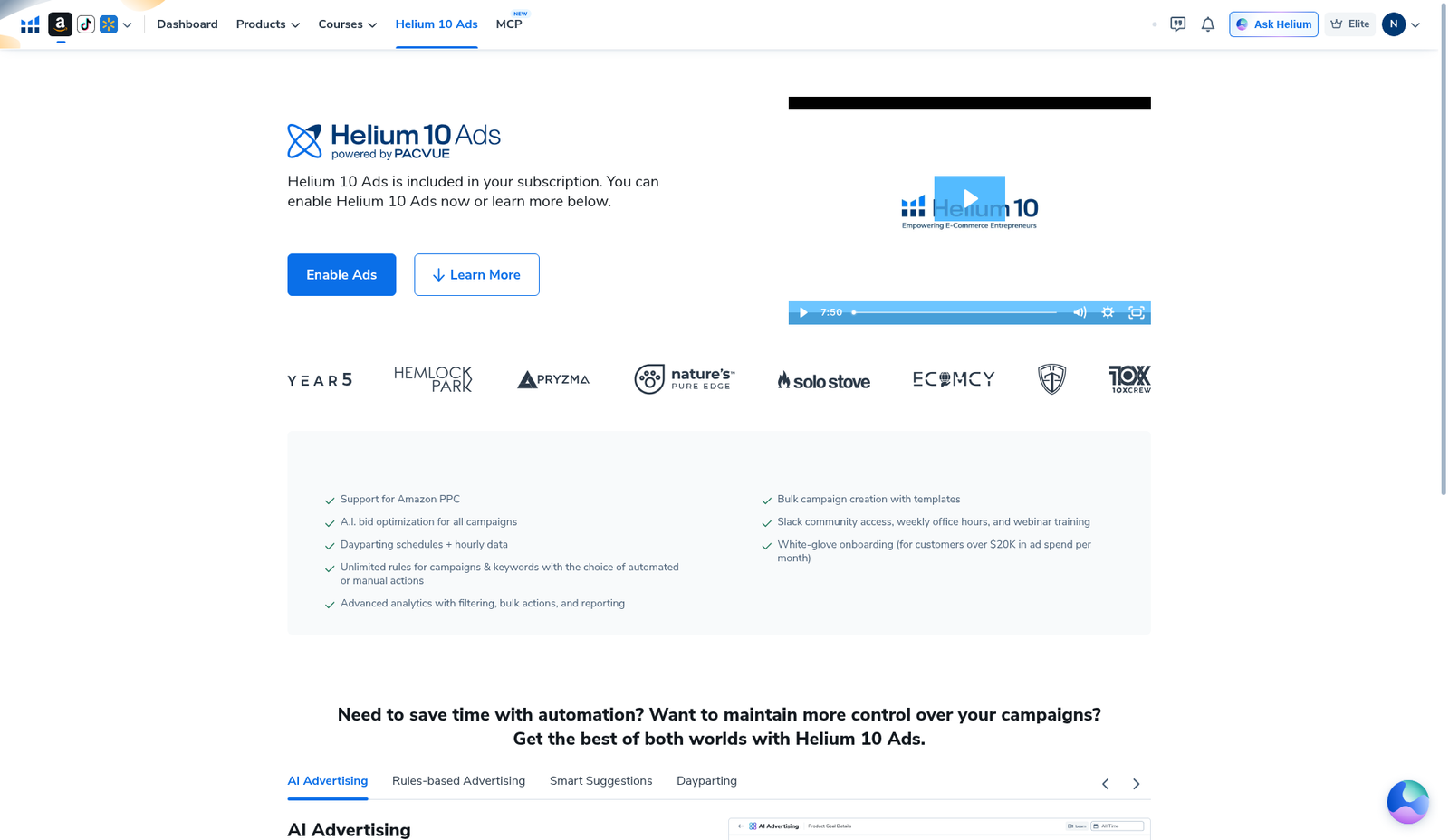
On 2026-10-29 (English UI, Elite) we opened Helium 10 Ads from the top nav. What we captured is the enable / first-look landing, not a running Ads console with live spend:
| Field | What we saw |
|---|---|
| Tool label | Helium 10 Ads (NEW badge) · powered by PACVUE |
| Hero CTA | Blue Enable Ads · white Learn More |
| Copy on page | “Helium 10 Ads is included in your subscription. You can enable Helium 10 Ads now or learn more below.” |
| Feature tabs | AI Advertising · Rules-based Advertising · Smart Suggestions · Dayparting |
| Live campaigns | None shown — no campaign list, no ACoS from our account |
| Our action | Did not click Enable Ads · did not authorize spend · did not create a campaign |
Honest takeaway: this guide is a first look at what Ads claims to include and how to open it. It is not a “we ran Sponsored Products and hit X% ACoS” case study. The mock dashboard graphics on the landing page are product marketing, not our account data. Plan math: Helium 10 Cost. Coupons: coupon page. Full take: Helium 10 Review. More walkthroughs: guides hub.
Ready to try Helium 10?
New checkout codes we verified 2026-10-29:
Monthly: AIPILOTDAILY20 (20% off for 6 months) · Annual: prefer AIPILOTDAILY10 (≈10% forever on our annual test). Confirm on your own summary.
What Helium 10 Ads includes (from the enable page)
The enable landing lists capabilities with checkmarks. We are quoting the page—not claiming we used each control:
Automation & bidding
- Support for Amazon PPC
- A.I. bid optimization for all campaigns
- Dayparting schedules + hourly data
- Unlimited rules for campaigns & keywords (automated or manual actions)
Build & reporting
- Advanced analytics with filtering, bulk actions, and reporting
- Bulk campaign creation with templates
Support (plan-dependent copy on page)
- Slack community access, weekly office hours, and webinar training
- White-glove onboarding (copy mentions customers over $20K in ad spend per month)
Feature tabs under the fold: AI Advertising, Rules-based Advertising, Smart Suggestions, Dayparting. The AI tab describes Target ACoS-style objectives and Sponsored Product campaigns managed with AI. The Rules tab describes keyword harvesting, negation, bid adjustments, and template rules. Those descriptions are Helium’s product copy; we did not configure any of them.
Prerequisites before you enable Ads
- Helium 10 account with Ads available on your plan (our shots are from Elite; your plan may gate Ads differently—confirm in-account).
- Account language = English – EN so labels match this tutorial.
- Amazon Advertising account access you are willing to connect after enable—Ads is useless without ad API / advertising authorization.
- Budget discipline — enabling a PPC tool is not free ad spend. Set Amazon budgets separately; Helium does not magically spend “included” money for you.
- Optional: read Helium 10 Cost and Review first if you are still deciding whether the suite is worth paying for.
Step 1 — Open Helium 10 Ads from the nav
Sign in at members.helium10.com. In the top bar, click Helium 10 Ads (often with a NEW badge). You can also open Ads from the Amazon Tools menu under Marketing → Helium 10 Ads (AI) (Automate & Optimize Ads Campaigns).
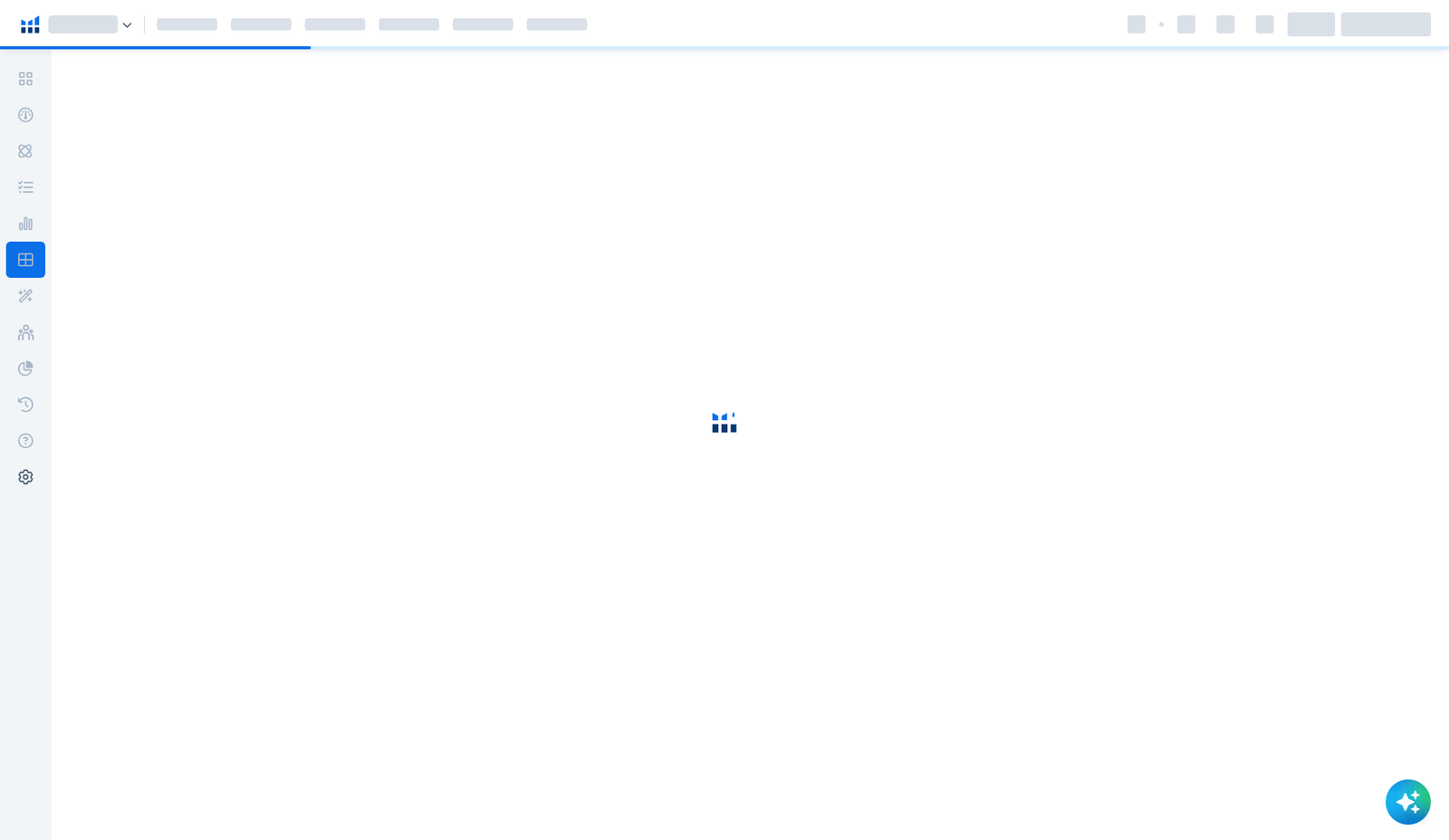
On first open you may see a brief loading shell (sidebar icons + empty white canvas with the Helium logo spinner) before the enable landing paints. That loading state is normal—it is not a broken campaign dashboard.
Step 2 — Read the PACVUE enable screen (do not skip this)
When Ads is not yet enabled, the hero says Helium 10 Ads powered by PACVUE. Body copy: Ads is included in your subscription; enable now or learn more. Primary button: Enable Ads. Secondary: Learn More. Brand logos and a short video sit beside the hero.
Critical honesty for this capture (2026-10-29): we left the page here. We did not click Enable Ads. Therefore we have no live campaign manager screenshots, no account ACoS, no spend graphs, and no “first campaign created” proof from our login.
Step 3 — Scroll the feature explainer (AI Advertising tab)
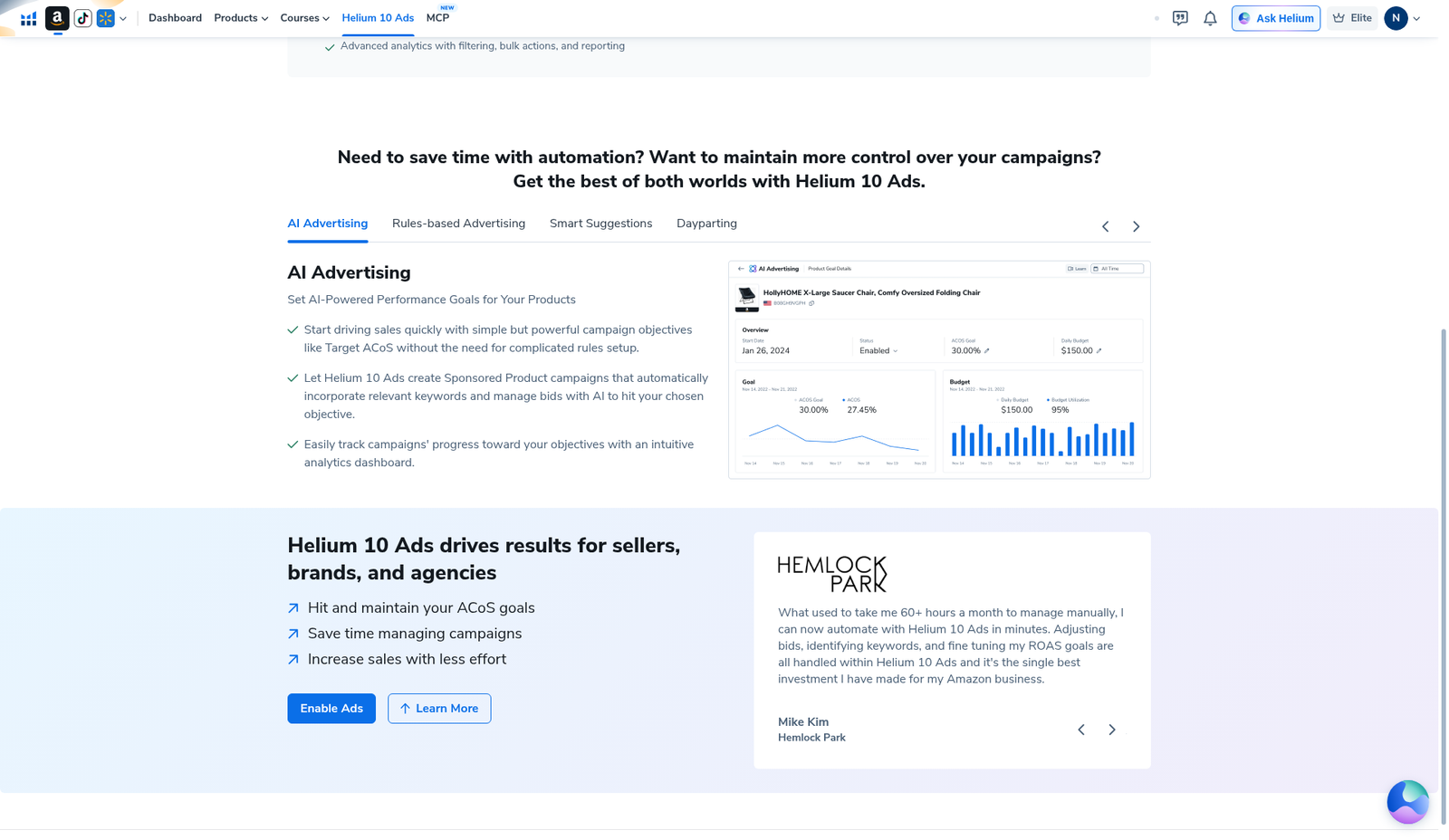
Below the checklist, Helium shows: “Need to save time with automation? Want to maintain more control over your campaigns? Get the best of both worlds with Helium 10 Ads.”
On the AI Advertising tab, copy covers:
- Simple objectives such as Target ACoS without building complicated rules first
- Sponsored Product campaigns that pull relevant keywords and manage bids toward the objective
- An analytics view for progress vs goals
Beside that copy is a marketing mock of a product campaign card (example product art and sample Goal / Budget numbers). Treat it as illustration—not your account.
Step 4 — Rules-based Advertising tab (still on the landing)
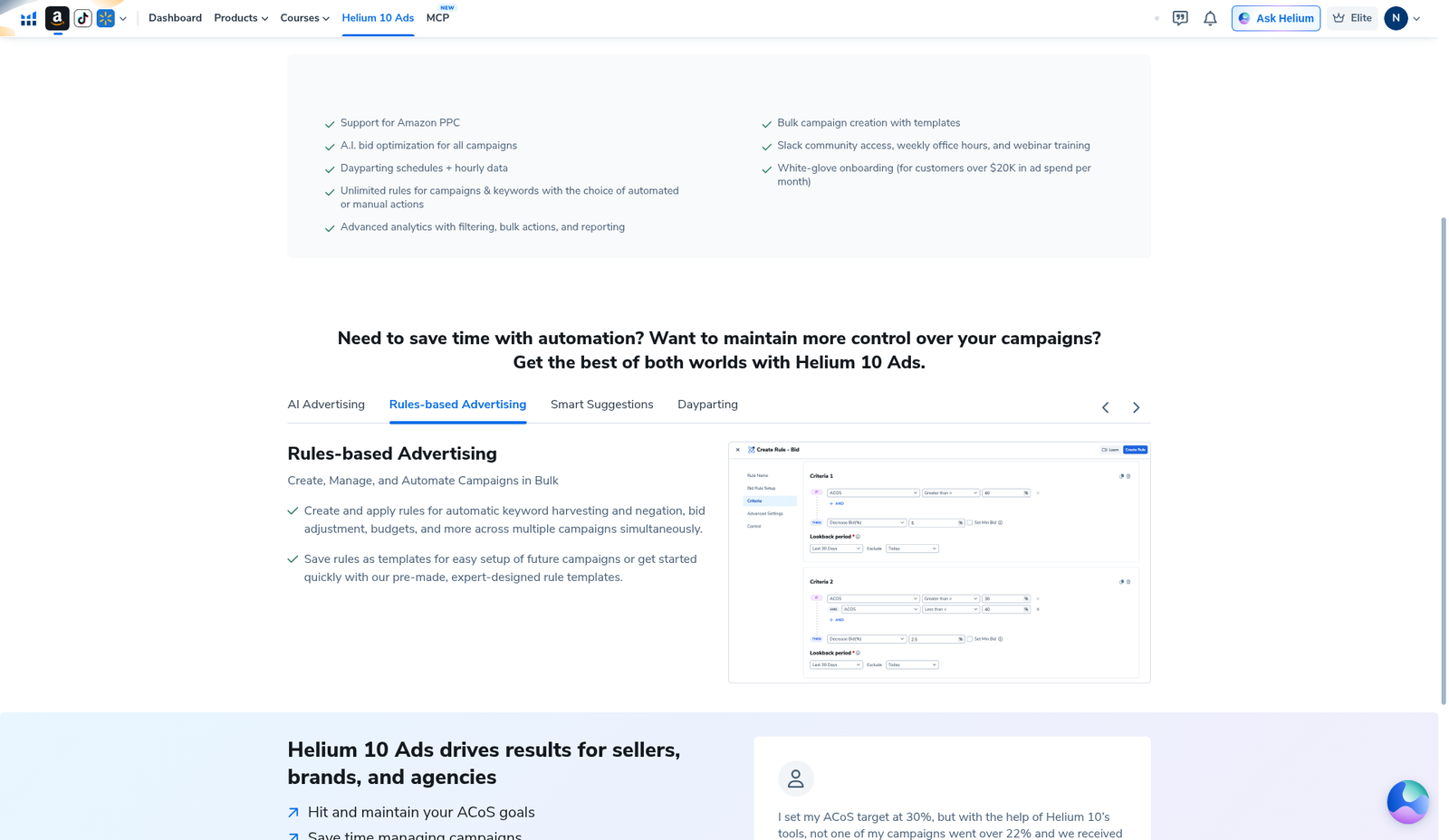
Switch to Rules-based Advertising. Helium describes bulk create/manage/automate: keyword harvesting, negation, bid adjustments, budgets, saving rules as templates, and expert pre-made templates. A small “Create Rule – Bid” style preview appears in the marketing block.
Again: this is landing education. We did not open a real rule builder inside an enabled Ads workspace.
Step 5 — What “first campaign setup” looks like after you enable (expectations only)
We cannot screenshot post-enable UI from this capture. In practice, sellers who do enable Ads should expect roughly this sequence (confirm in your own account—labels move):
- Complete Enable Ads and any advertising-account connection prompts.
- Land in the Ads / Adtomic workspace (campaign list or onboarding wizard—not the PACVUE marketing page).
- Create or import Sponsored Product campaigns; set objectives (e.g. target ACoS) or build rules manually.
- Set Amazon-side budgets and bids you can afford to lose while learning.
- Use analytics / dayparting / bulk actions only after you understand one SKU deeply.
Until you finish enable + connection, you will keep seeing the landing we photographed—or a loading shell like the empty canvas below.
What I tested vs what I did not claim
Tested (2026-10-29, English UI, Elite):
- Opening Helium 10 Ads from top nav / Ads rail
- Reading the PACVUE enable hero (Enable Ads / Learn More)
- Scrolling feature checklist + AI Advertising and Rules-based Advertising tabs
- Capturing loading shells when the Ads module was still painting
Did not claim / did not do:
- Clicking Enable Ads
- Connecting Advertising / running any Amazon ad spend
- Creating Sponsored Product / brand / display campaigns
- Real ACoS, ROAS, or “we cut wasted spend by X%” results from our account
- That every Helium plan includes identical Ads headroom or white-glove onboarding
- Affiliate anything other than https://i.helium10.com/jR0Z10
Common mistakes on day one
- Treating the landing mock as your performance — sample Goal / Budget art is not your data.
- Enabling Ads with no Amazon Advertising access ready — you stall at connection.
- Skipping budgets — automation without a daily cap is how accounts burn cash.
- Expecting Ads to replace keyword research — still pull phrases from Cerebro / Magnet first; Ads optimizes paid traffic, it does not invent product-market fit.
- Assuming “included in subscription” means free clicks — tool access ≠ media spend.
FAQ
Is Helium 10 Ads the same as Adtomic?
In product language you will still see Adtomic in older docs and iconography; the members UI we opened labels the module Helium 10 Ads and the hero adds powered by PACVUE. Same ads product family—verify the label in your own nav.
Do I need Elite to open Ads?
Our screenshots are from an Elite session where the Ads nav item was visible. Your plan may differ. Check in-account or read Helium 10 Cost before buying up for Ads alone.
Will this tutorial show my first live campaign?
No. This capture stops at the enable landing on purpose. After you enable in your account, use Helium’s own onboarding and Amazon Advertising console together—and re-verify UI labels; they change.
Which coupon should I use for Helium 10 itself?
Checkout via https://i.helium10.com/jR0Z10. Our verified notes: AIPILOTDAILY20 monthly (20% off for 6 months on our test) and AIPILOTDAILY10 annual (~10% forever on our annual test). Confirm on your summary: coupon notes.
CTA
Open Helium 10 Ads, read the PACVUE enable screen, and only click Enable Ads when advertising access and budgets are ready. For suite pricing and stack context: Cost, Review, guides. Start Helium checkout: https://i.helium10.com/jR0Z10 with AIPILOTDAILY20 / AIPILOTDAILY10.

Leave a Reply