
Last verified: 2026-10-28
Affiliate disclosure: We may earn a commission if you subscribe to Helium 10 through our links. Screenshots and workflow notes come from our own signed-in Helium 10 account (English UI, Frankenstein / Keyword Processor). Codes: AIPILOTDAILY20 and AIPILOTDAILY10 via https://i.helium10.com/jR0Z10. Offers change, so recheck before paying.
Quick answer
The Helium 10 Frankenstein tool (page title Keyword Processor) cleans messy keyword lists. Paste raw phrases from Cerebro, Magnet, competitor titles, or your notes, choose output settings, and it lowercases, strips punctuation, removes duplicates, can protect numbers and keep multi-word phrases together, and counts how often each phrase appeared. Then you copy the cleaned list into Listing Builder, a backend search-terms field, or a PPC sheet.
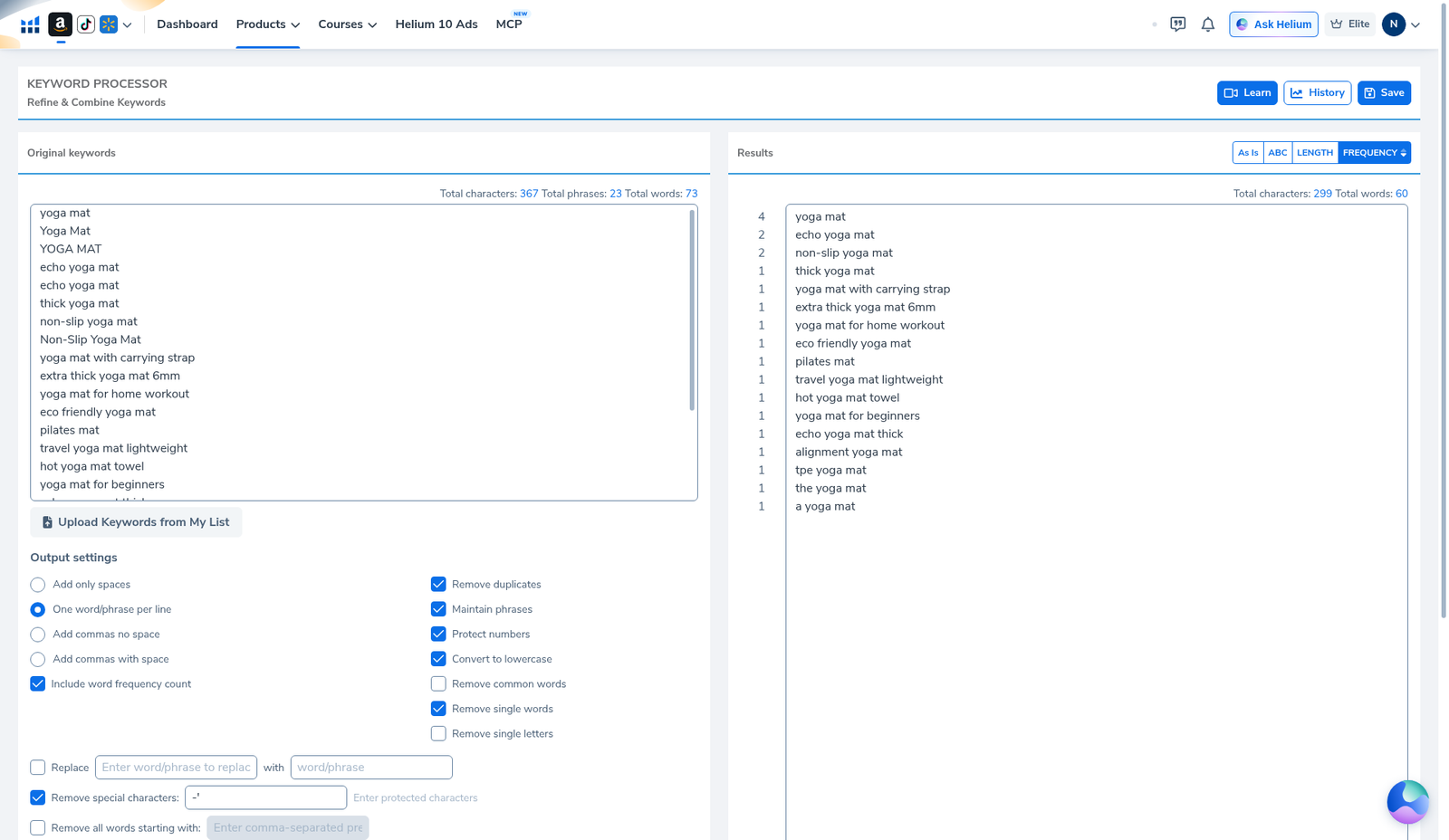
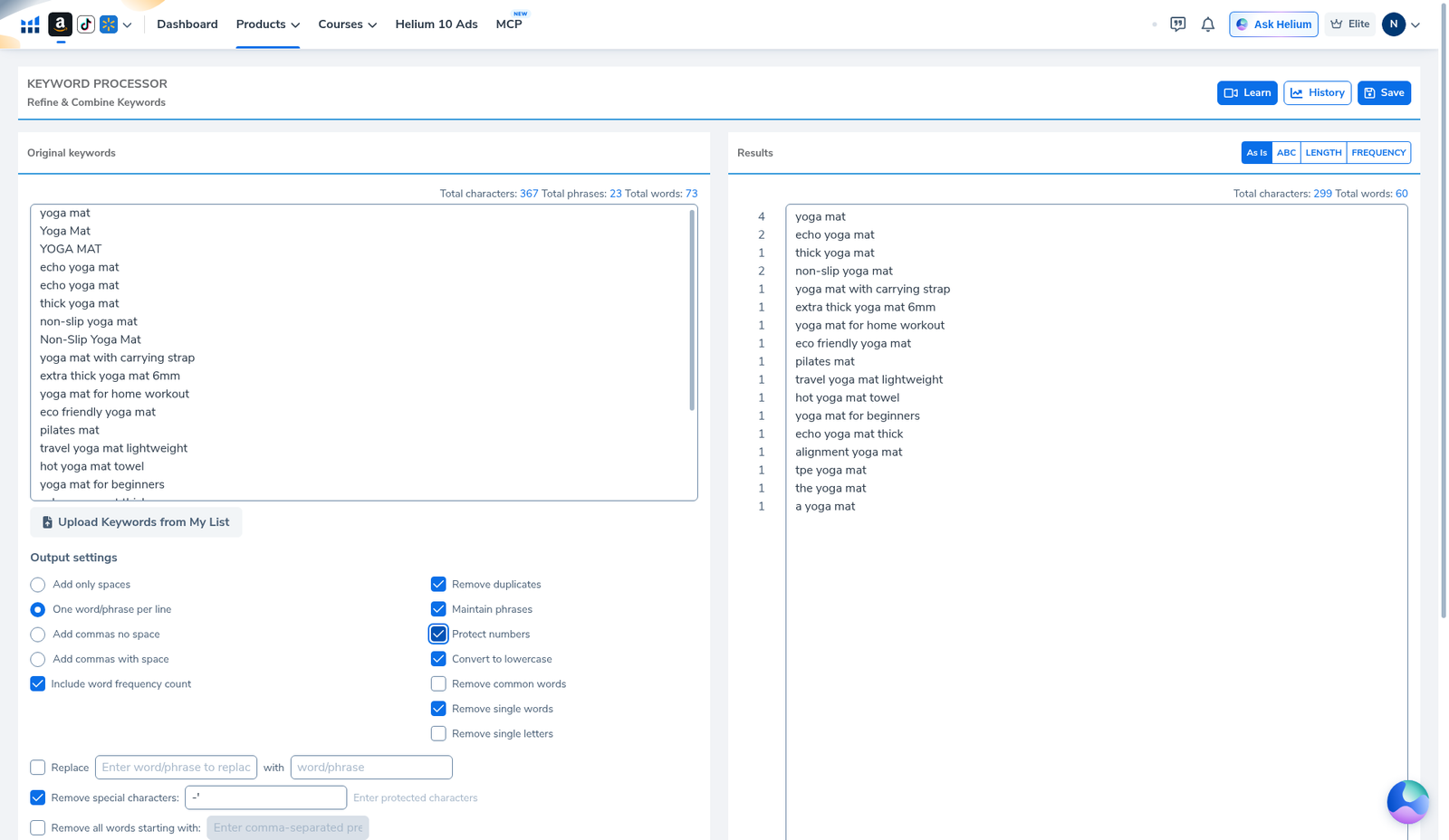
On 2026-10-28 (English UI) we pasted 23 messy echo / yoga-mat lines (mixed case, duplicates, !!!, a 6mm size, and a fake ASIN-like token). With one word/phrase per line, maintain phrases, lowercase, remove duplicates, protect numbers, remove special characters, and include word frequency count turned on, the list went from 367 characters / 23 phrases / 73 words to about 299 characters / 60 words, with yoga mat counted ×4.
| Field | What we saw |
|---|---|
| Where | members.helium10.com/frankenstein (page title “Keyword Processor”) |
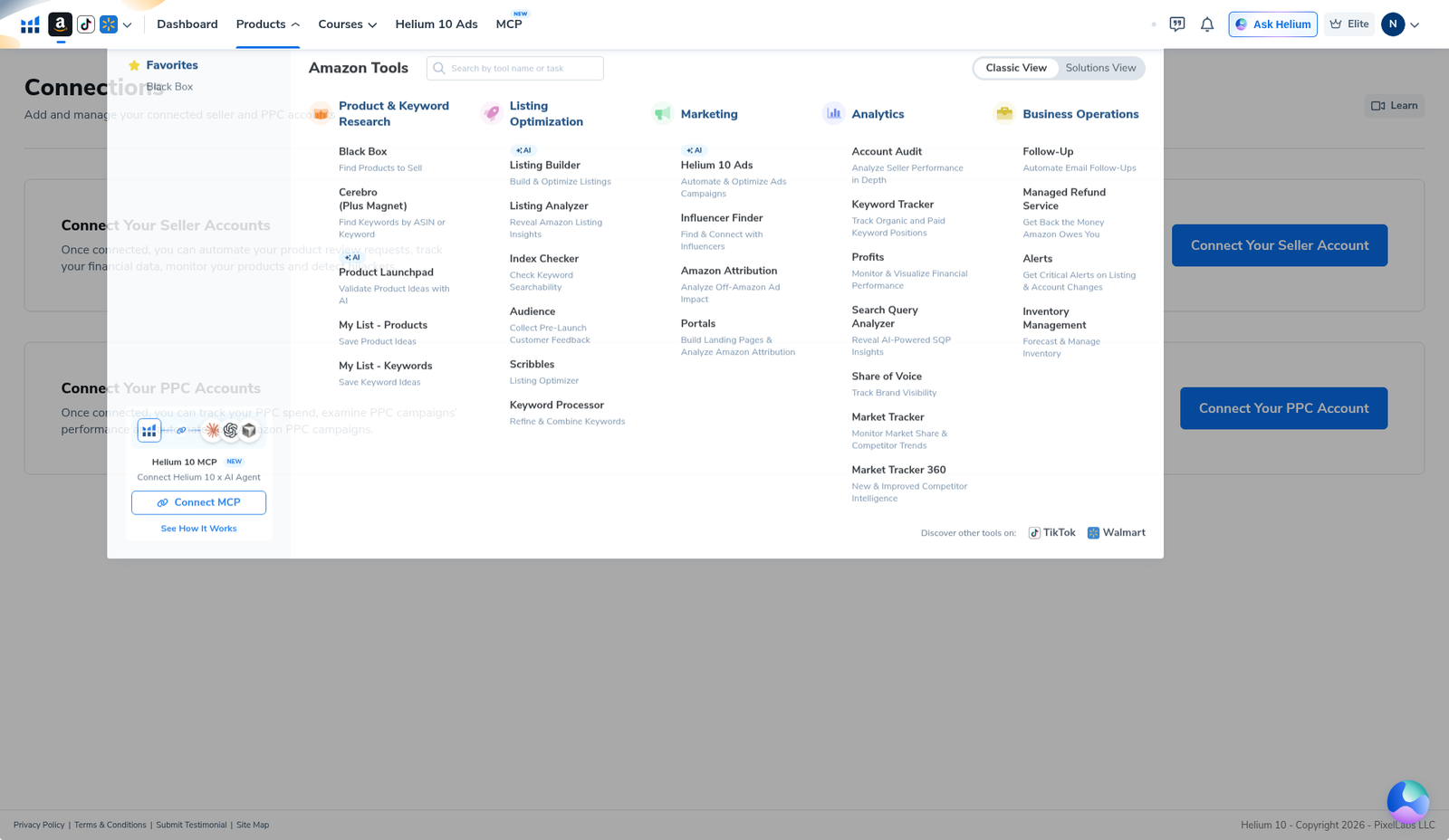
| Nav | Products → Amazon Tools → Listing Optimization → Keyword Processor (“Refine & Combine Keywords”) |
| Input | 23 lines: echo / yoga mat variants, yoga mat!!!, extra thick yoga mat 6mm, B0ECHOYOGA1 |
| Input counter | 367 chars · 23 phrases · 73 words |
| Options used | One word/phrase per line, Include word frequency count, Remove duplicates, Maintain phrases, Protect numbers, Convert to lowercase, Remove special characters |
| Output counter | ~299 chars · ~60 words (Frequency tab) |
| Top counts | yoga mat ×4 · echo yoga mat ×2 · non-slip yoga mat ×2 · everything else ×1 |
| Quota | No usage meter on the page, only char / phrase / word counters |
| Gotcha | Remove ASIN matched a 10-character ASIN pattern and can leave fragments; reprocess after cleanup |
Honest takeaway: Frankenstein does not find keywords. It tidies lists you already have. It is fast and has no meter, but you have to pick the right separator and phrase options, and run the list again after you use Remove ASIN.
Workflow: Cerebro reverse ASIN export → Frankenstein clean-up → Listing Builder drafting. Coupons: coupon code page.
Ready to try Helium 10?
New checkout codes we verified 2026-10-28:
Monthly: AIPILOTDAILY20 (20% off for 6 months) · Annual: prefer AIPILOTDAILY10 (≈10% forever on our annual test). Confirm on your own summary.
What I tested vs what I did not claim
Tested (2026-10-28, English UI): opened the tool from the Products mega-menu; checked default output settings; pasted the 23-line yoga-mat list; switched to one-phrase-per-line with maintain phrases, protect numbers, dedupe, lowercase, special-character removal, and frequency count; sorted by Frequency; used Copy; ran Remove ASIN.
Did not do / did not claim: we did not click Save, Add keywords to My List, or Scribbles. We make no claim about search volume or ranking, since Frankenstein does not show either. On codes: annual is not 20%; prefer AIPILOTDAILY10 for annual. Link only https://i.helium10.com/jR0Z10.
What Frankenstein is (and the naming confusion)
Older Helium 10 guides and videos call it Frankenstein. The URL is still /frankenstein, and Helium’s Learn video still uses that name. The page title now reads Keyword Processor with subtitle Refine & Combine Keywords. Site Map and the Products mega-menu use Keyword Processor. All of these names point to the same tool.
It lives in the Listing Optimization group next to Scribbles, Listing Builder, Index Checker, and Listing Analyzer, because its job is to get a raw keyword dump ready for listing copy.
Step 1 — Open Keyword Processor from the Products menu
In the members area, hover Products in the top bar. The Amazon Tools mega-menu opens. In the Listing Optimization column, click Keyword Processor (“Refine & Combine Keywords”). You can also go straight to members.helium10.com/frankenstein while signed in. Helium appends your account ID to the URL—we are not publishing ours.
Step 2 — Get to know the empty layout
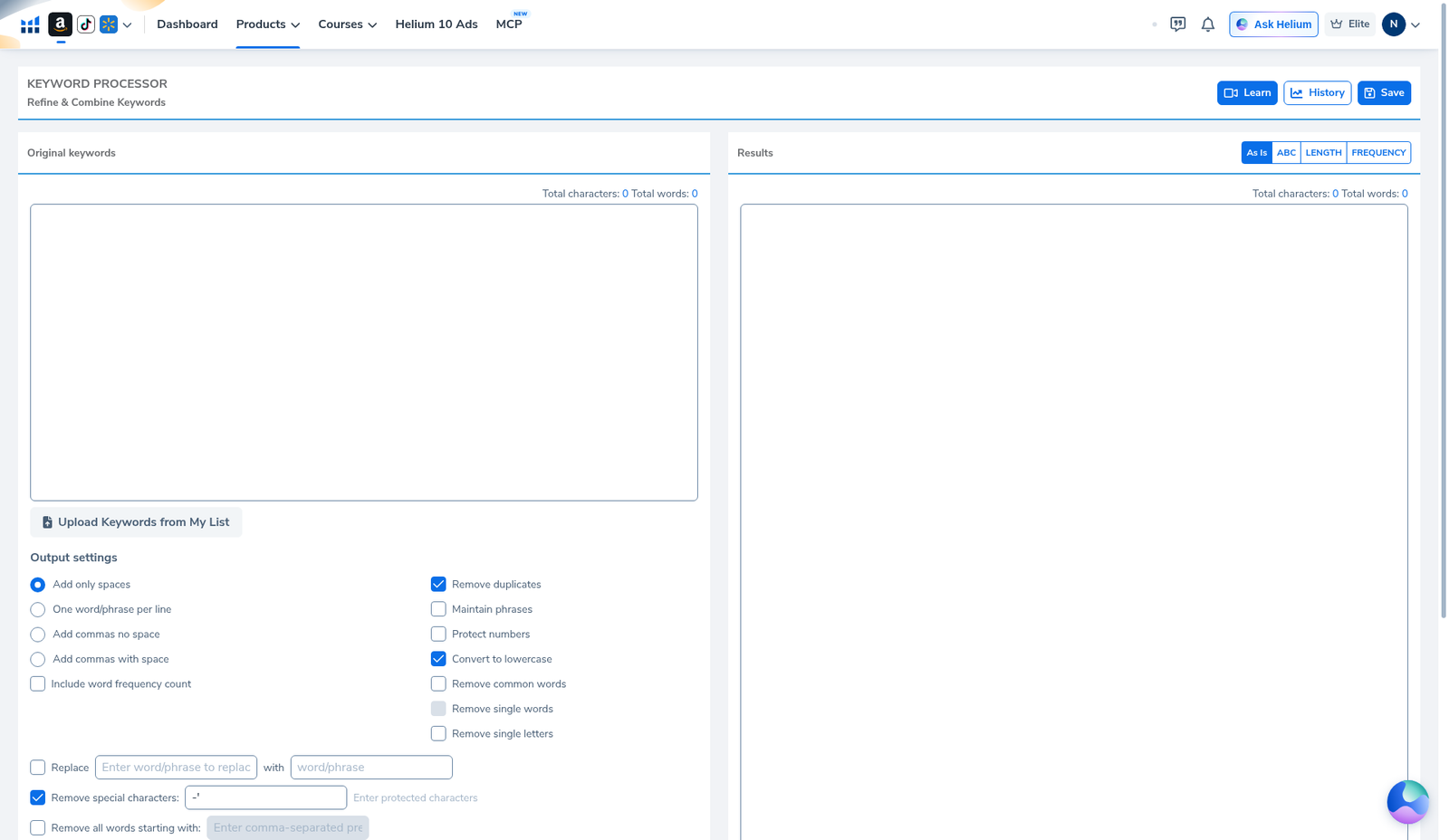
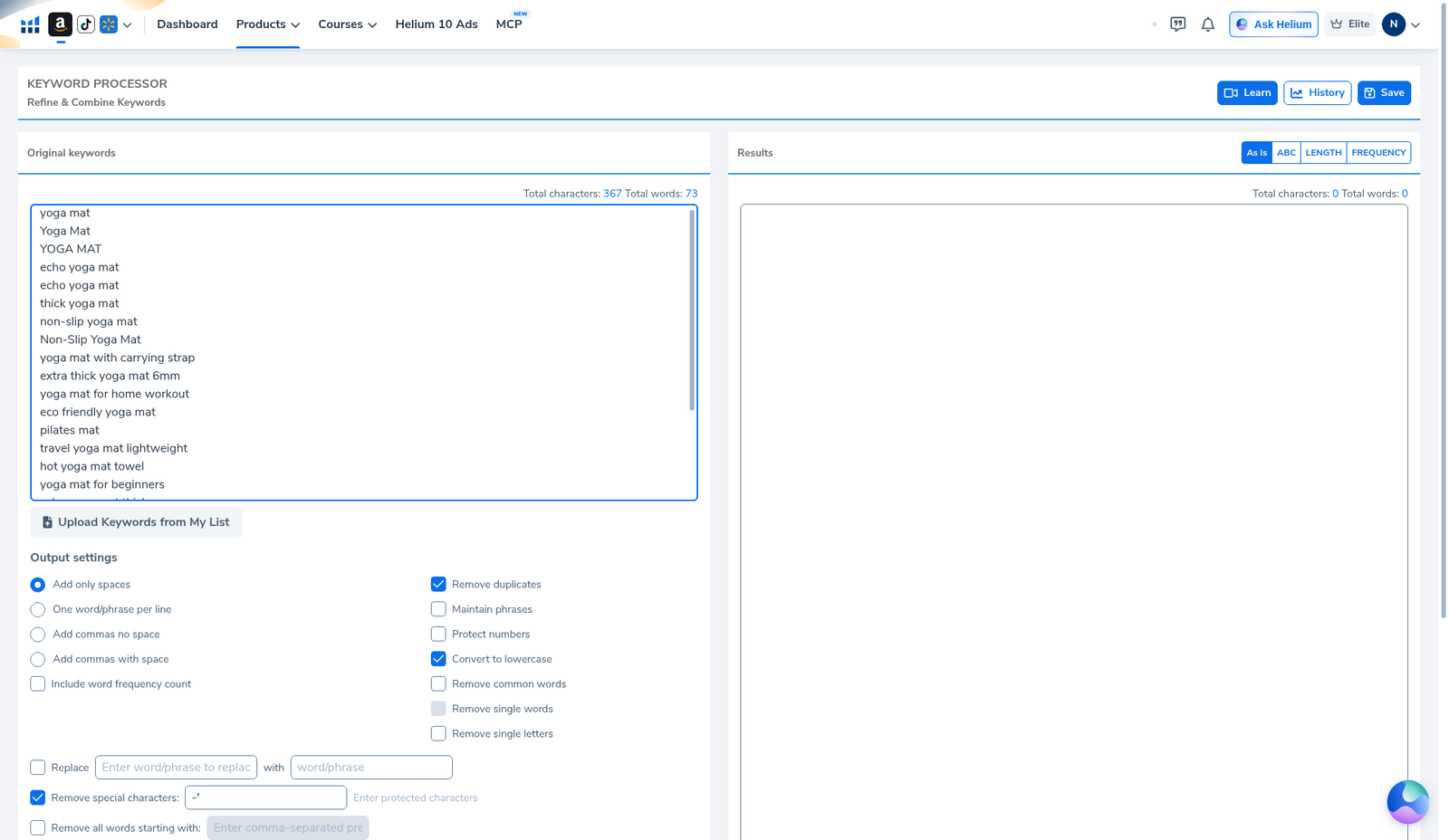
The page has two panes. Original Keywords (raw input) is on the left and Results is on the right. Each has live counters: Total characters, Total phrases, and Total words. Ours started at 0/0.
There was no run quota, credit counter, or “uses left” meter on the page. The only numbers are the text counters. Plan limits may exist elsewhere in your account, but this tool did not show one.
Step 3 — Read the output settings before you paste
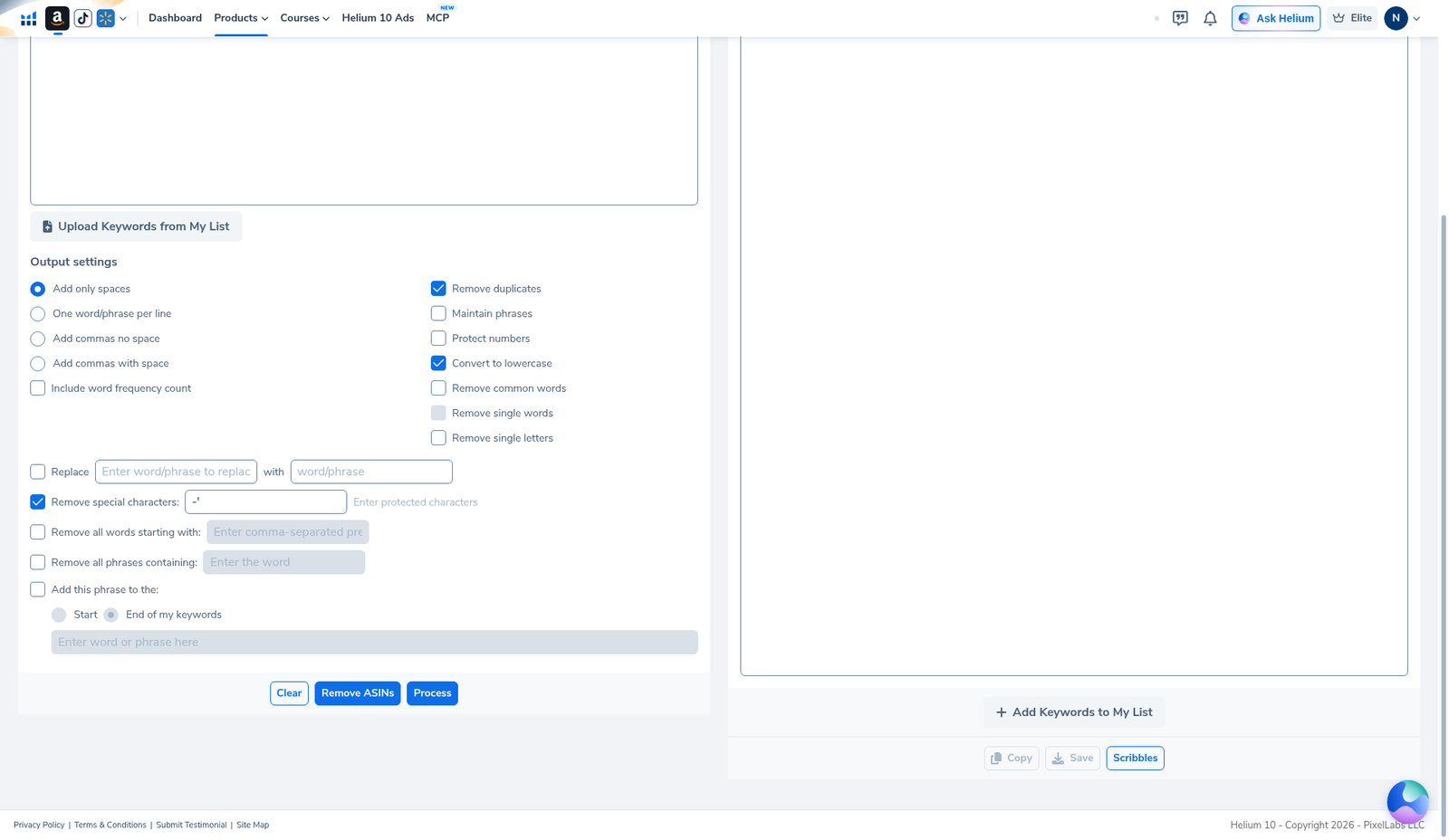
Under Output Settings there are separator radios and a stack of checkboxes:
- Separators: spaces only (default) or One word/phrase per line, plus other separator choices.
- Include word frequency count
- Remove duplicates (on by default)
- Maintain phrases — multi-word lines stay together instead of being split into single words
- Protect numbers
- Convert to lowercase (on by default)
- Remove special characters (on by default)
- Remove common words / Remove single words / Remove single letters
Below that are Clear, Remove ASIN, and Process. Changing an option often reprocesses the output right away.
One thing to know: Maintain phrases is not Amazon phrase match. Frankenstein has no exact / phrase / broad match types. It only controls whether lines get split into words.
Step 4 — Paste a messy list (ours on purpose)
We built a deliberately ugly 23-line list: yoga mat, Yoga Mat, YOGA MAT, echo yoga mat twice, non-slip yoga mat and Non-Slip Yoga Mat, extra thick yoga mat 6mm, the yoga mat, a yoga mat, yoga mat!!!, TPE yoga mat, pilates mat, and the fake ASIN-style token B0ECHOYOGA1. In practice you would paste a Cerebro or Magnet export column, competitor titles, or a brainstorm.
After pasting, the input counter read 367 characters · 23 phrases · 73 words. The results pane was still empty at that point.
Step 5 — Switch to one phrase per line and maintain phrases
The default spaces-only output gives you one long run-on string. That is fine for a backend search-terms box, but it is hard to review. For a list you can read, choose One word/phrase per line and turn on Maintain phrases so echo yoga mat stays one phrase. Turn on Include word frequency count too, so you can see which phrases came up most often in your sources.
Step 6 — Protect numbers, then sort by Frequency
Turn on Protect numbers if sizes, counts, or model numbers matter. With it off, extra thick yoga mat 6mm can become extra thick yoga mat mm, which is useless. With it on, 6mm survives.
Then click the Frequency tab in the results header. Other sort tabs include As Is, ABC, and Length. Our Frequency-sorted English-UI run showed roughly 299 characters · 60 words, led by:
| Count | Phrase |
|---|---|
| 4 | yoga mat |
| 2 | echo yoga mat |
| 2 | non-slip yoga mat |
| 1 | thick yoga mat · yoga mat with carrying strap · extra thick yoga mat 6mm · other variants · b0echoyoga1 |
yoga mat hit 4 because yoga mat, Yoga Mat, YOGA MAT, and yoga mat!!! all folded together once the text was lowercased and special characters were stripped. The frequency count only tells you how often a phrase appeared in your pasted text, not Amazon search demand.
Step 7 — Copy the cleaned list (and what we did not click)
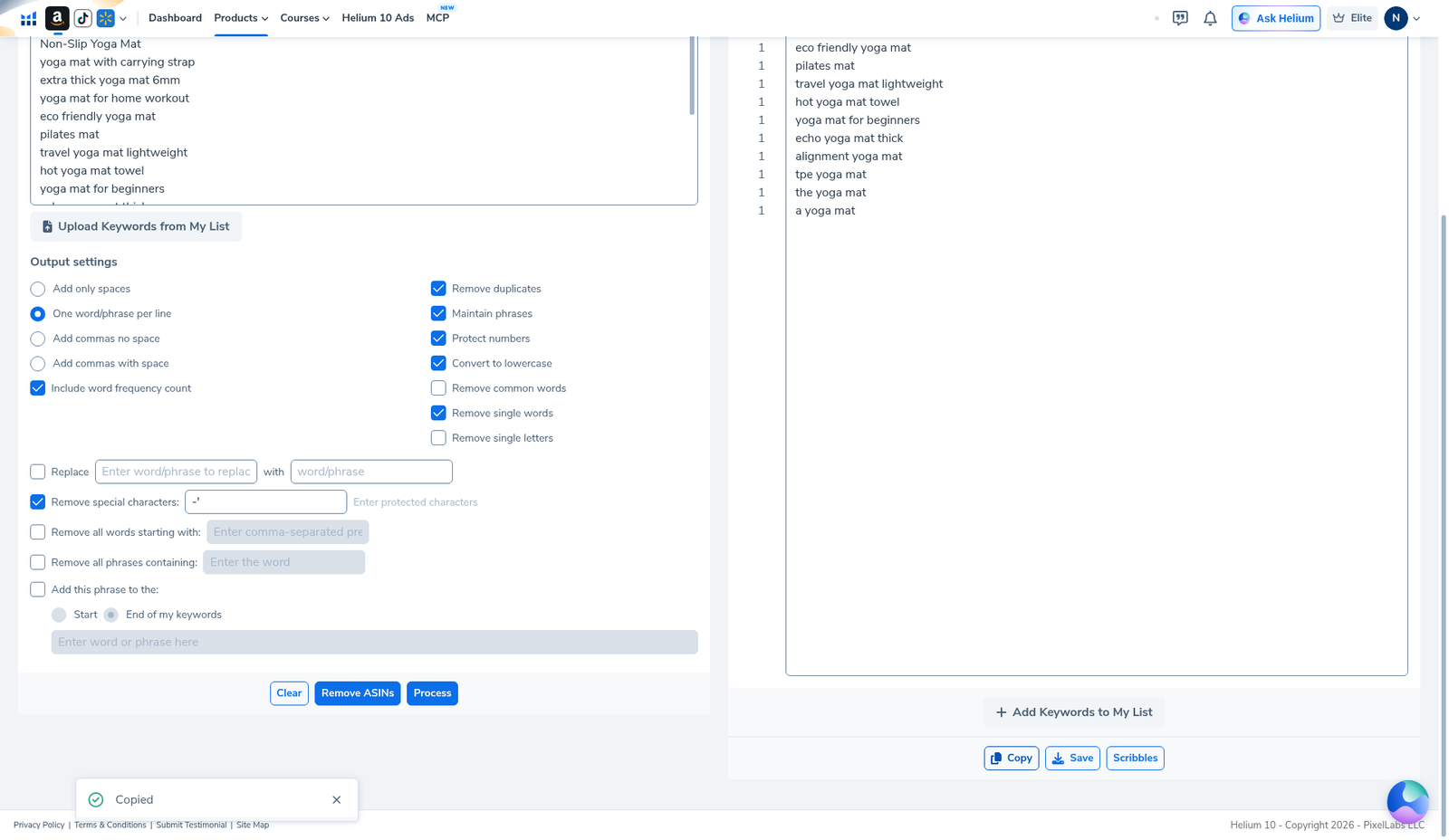
The results footer has buttons such as Add keywords to My List, Copy, Save, and Scribbles. We used Copy only. Paste the result into Listing Builder, Scribbles, a PPC sheet, or Seller Central backend terms. If you use it for the backend field, switch back to space-separated output first.
We did not click Save, Add to My List, or Scribbles, so we cannot tell you exactly what they produce.
Step 8 — Remove ASINs, then reprocess (the gotcha)
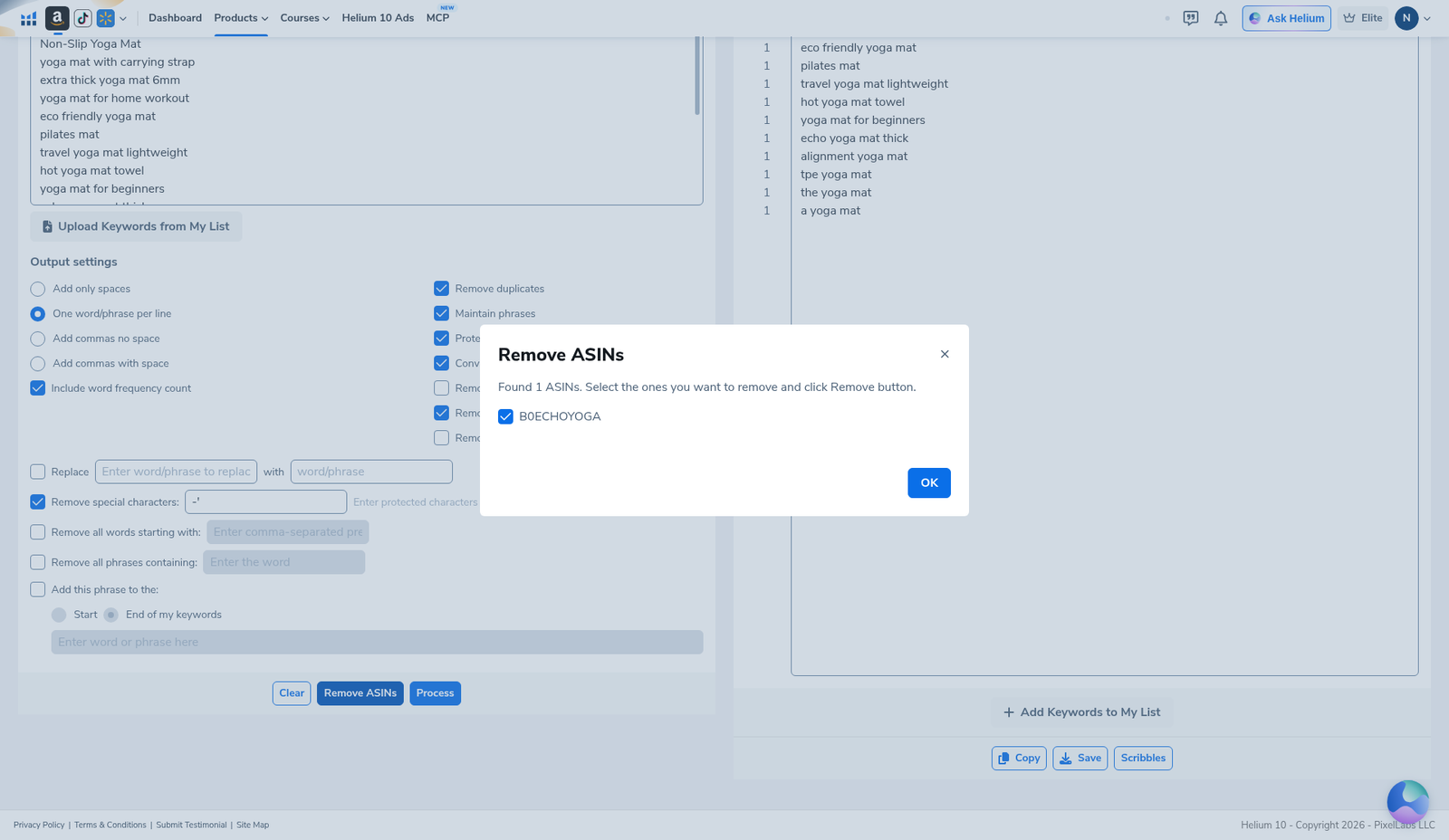
Reverse-ASIN and competitor exports often contain ASINs. Remove ASIN scans the input. Ours found an ASIN-style match inside our fake token B0ECHOYOGA1 (Helium matches 10-character ASIN patterns). Confirming with OK can leave a stray fragment in the input, while the results box may still show the old token until you reprocess.
Fix: after Remove ASIN, delete any leftover fragments from the input, then click Process (or toggle an option) so the results refresh. Copy only after that.
When to use Frankenstein (and when not to)
Use it to:
- merge and dedupe keyword exports before drafting in Listing Builder
- find the phrases that repeat across competitor titles
- strip ASINs and punctuation from a Cerebro reverse-ASIN dump
- compress a list into space-separated backend terms
Don’t use it for search volume, ranking, or relevance. The frequency count only tells you how often a phrase appeared in your pasted text, not on Amazon. Don’t use it to set PPC match types either.
Common mistakes
- Leaving spaces-only on when you wanted a list you could review. Switch to one phrase per line.
- Forgetting Protect numbers, which can turn
6mmintomm. - Turning on Remove single words or Remove common words without checking first. Both can drop useful modifiers or phrases.
- Copying right after Remove ASIN. The results can still contain the ASIN, and the input can keep leftover fragments. Clean up and reprocess first.
- Treating frequency as demand. It counts your inputs, not shopper searches.
- Mixing up Maintain phrases and Amazon phrase match. They are not related.
Ready to try Helium 10?
New checkout codes we verified 2026-10-28:
Monthly: AIPILOTDAILY20 (20% off for 6 months) · Annual: prefer AIPILOTDAILY10 (≈10% forever on our annual test). Confirm on your own summary.
FAQ
Is Helium 10 Frankenstein the same as Keyword Processor?
Yes. The URL is still /frankenstein and Helium’s Learn video still says “Frankenstein”, but the page title is Keyword Processor (menu label matches).
Where is Frankenstein in the Helium 10 menu?
Products → Amazon Tools → Listing Optimization → Keyword Processor, or go to members.helium10.com/frankenstein while signed in.
Does Frankenstein have a usage limit?
We did not see one. There is no quota, credit, or “uses left” meter on the page, only character, phrase, and word counters.
Does it give search volume?
No. It cleans and counts the text you paste in. Use Cerebro or Magnet for volume, then bring those lists here.
Why can Remove ASIN leave fragments?
It matches 10-character ASIN patterns. Tokens longer than 10 characters can leave leftovers. Either way, check the input and reprocess, because the results do not always update on their own.
Which coupon code should I use?
Monthly: AIPILOTDAILY20 (20% off for 6 months). Annual: prefer AIPILOTDAILY10 (about 10% off, ongoing, in our annual test). Annual is not 20%. Details are on the coupon page, and the link is https://i.helium10.com/jR0Z10.
Bottom line
Export keywords from Cerebro and paste them into Frankenstein. Switch to one phrase per line with maintain phrases and protect numbers, sort by Frequency, remove ASINs, reprocess, then copy the list into Listing Builder. Need access? Use AIPILOTDAILY20 (monthly) or AIPILOTDAILY10 (annual) at https://i.helium10.com/jR0Z10, and confirm the details on our coupon page. More: Helium 10 guides.

Leave a Reply