
Last verified: 2026-10-28
Affiliate disclosure: We may earn a commission if you subscribe to Helium 10 through our links. Screenshots and workflow notes come from our own signed-in Helium 10 account (English UI, Profits). Codes: AIPILOTDAILY20 and AIPILOTDAILY10 via https://i.helium10.com/jR0Z10. Offers change, so recheck before paying.
Quick answer
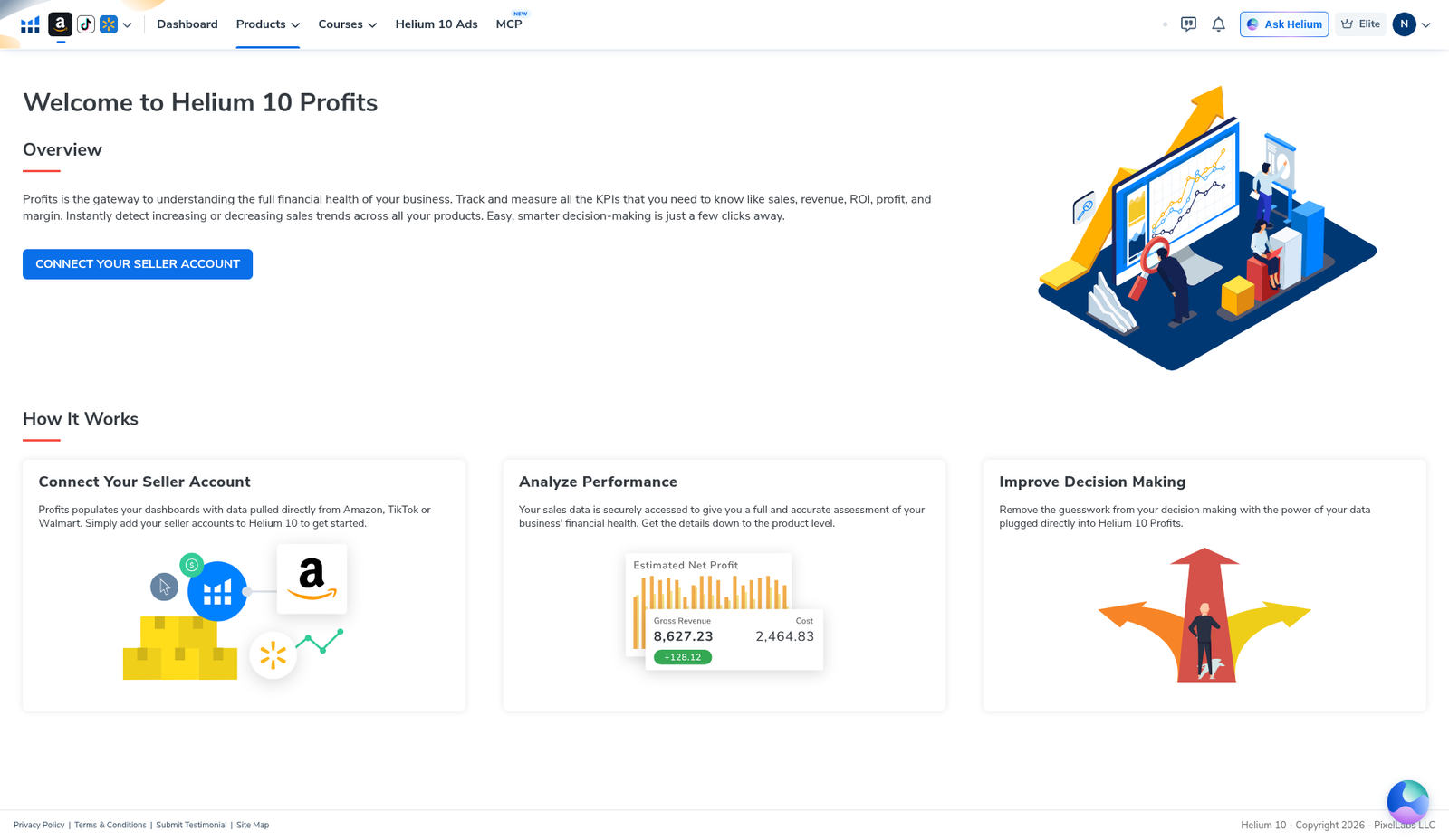
Helium 10 Profits is the P&L / financial dashboard (subtitle: Monitor & Visualize Financial Performance). Until you connect a seller account, members.helium10.com/profits redirects to /profits/landing and shows a connect screen—not live revenue charts, product rows, filters, or export.
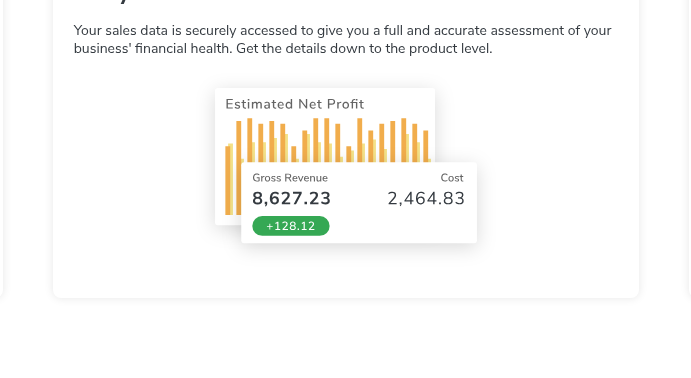
On 2026-10-28 our Elite account (English UI) had no Seller Central and no PPC account linked. We opened Profits from Site Map → Analytics and from Products → Analytics, clicked Connect Your Seller Account, reached the Amazon region picker (North America / Europe / Asia), selected North America only so Initiate in Seller Central enabled, and stopped before OAuth. We did not invent profit numbers. The landing illustration that shows Gross Revenue 8,627.23 is marketing art, not this account’s data.
| Field | What we saw |
|---|---|
| Where | members.helium10.com/profits → redirects to /profits/landing |
| Nav | Site Map → Analytics → Profits; also Products → Analytics → Profits |
| UI subtitle | Monitor & Visualize Financial Performance |
| Live P&L | None — Seller Central not connected |
| Connect CTA | Connect Your Seller Account → Add an Amazon Seller Account |
| Regions | North America (USA, Canada, Mexico, Brazil) · Europe · Asia |
| What we selected | North America only (to enable the button); OAuth not started |
| Connections page | No seller account, no PPC account |
| Sample number | Gross Revenue 8,627.23 on Analyze Performance card = illustration only |
| Plan badge | Header shows Elite |
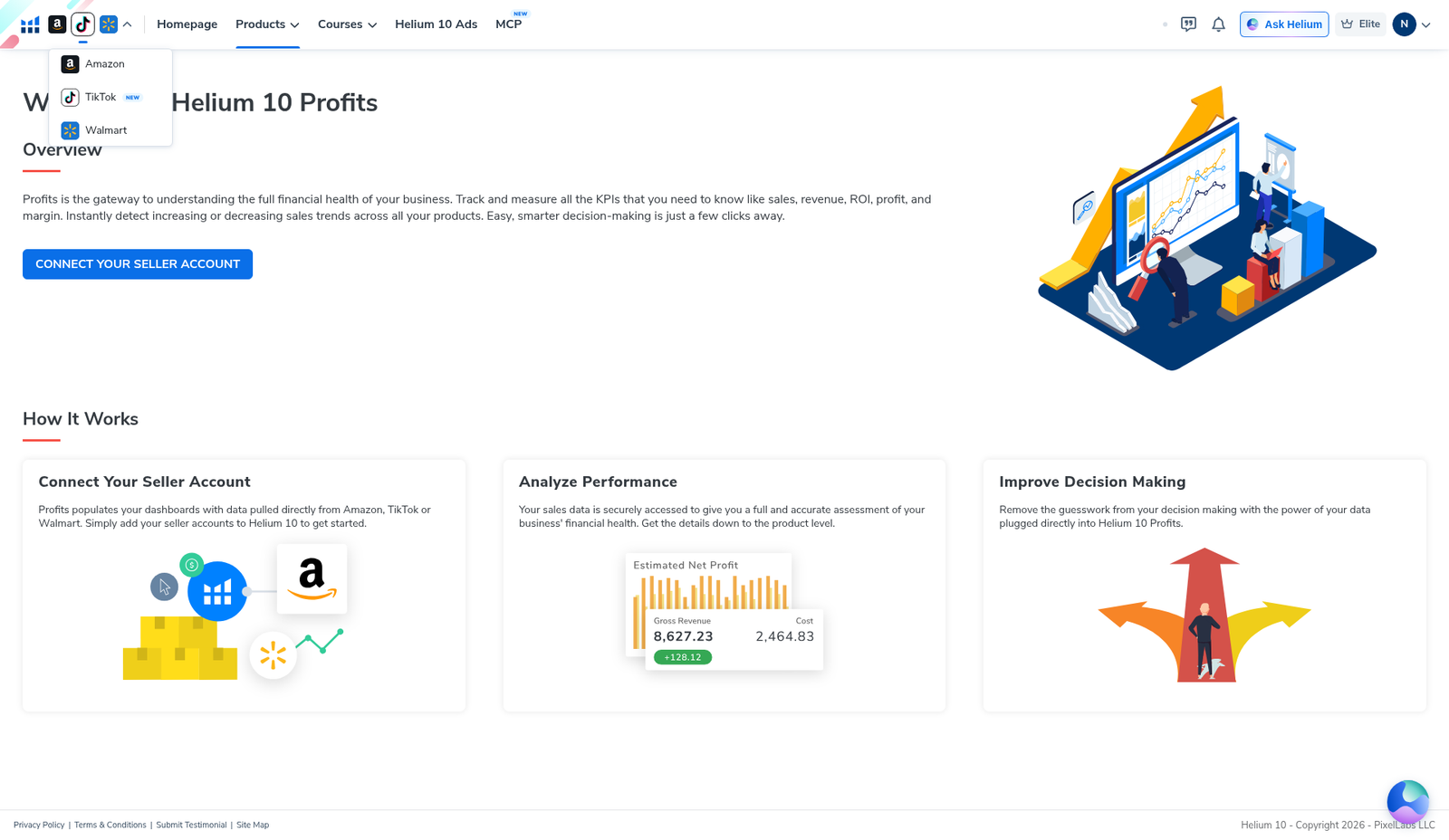
| Platforms | Landing switcher: Amazon (selected), TikTok (NEW), Walmart |
Honest takeaway: This guide shows how to open Helium 10 Profits and start connecting Seller Central—what you see before data loads. It is not a walkthrough of live P&L charts, COGS editing, or exports, because those screens were not available without a linked seller.
Related: Helium 10 guides · coupon codes · Xray for product research before you worry about P&L.
Ready to try Helium 10?
New checkout codes we verified 2026-10-28:
Monthly: AIPILOTDAILY20 (20% off for 6 months) · Annual: prefer AIPILOTDAILY10 (≈10% forever on our annual test). Confirm on your own summary.
What I tested vs what I did not claim
Tested (2026-10-28, English UI): opened Profits from Site Map → Analytics and from the Products mega-menu (Analytics column); confirmed /profits redirects to /profits/landing; reviewed the three How it works cards; opened the marketplace switcher (Amazon / TikTok / Walmart); clicked the Profits connect CTA into Add an Amazon Seller Account; viewed all three regions; selected North America so Initiate in Seller Central enabled; opened Connections and confirmed empty seller + PPC. Left OAuth unfinished on purpose.
Did not do / did not claim: we did not complete Seller Central OAuth, did not connect TikTok or Walmart sellers, did not open billing/Plans & billing, and did not see (or invent) a live date-range picker, KPI tiles, product-level P&L rows, COGS editor, filters, or export. The Gross Revenue 8,627.23 figure is landing artwork. Annual coupon is not 20%; prefer AIPILOTDAILY10. Link only https://i.helium10.com/jR0Z10.
What Helium 10 Profits is
Helium 10 markets Profits as a window into financial health: sales volume, revenue, ROI, and profit/loss down to product level, after you connect Amazon, TikTok, or Walmart seller data. It sits with other analytics tools (Search Query Analyzer, Market Tracker, Keyword Tracker), not in the listing-optimization group with Listing Builder or Keyword Processor (Frankenstein).
Until a seller is linked, you only get the landing / connect UI. That empty state is what this helium 10 profits tutorial documents honestly.
Step 1 — Find Profits in the Site Map (Analytics)
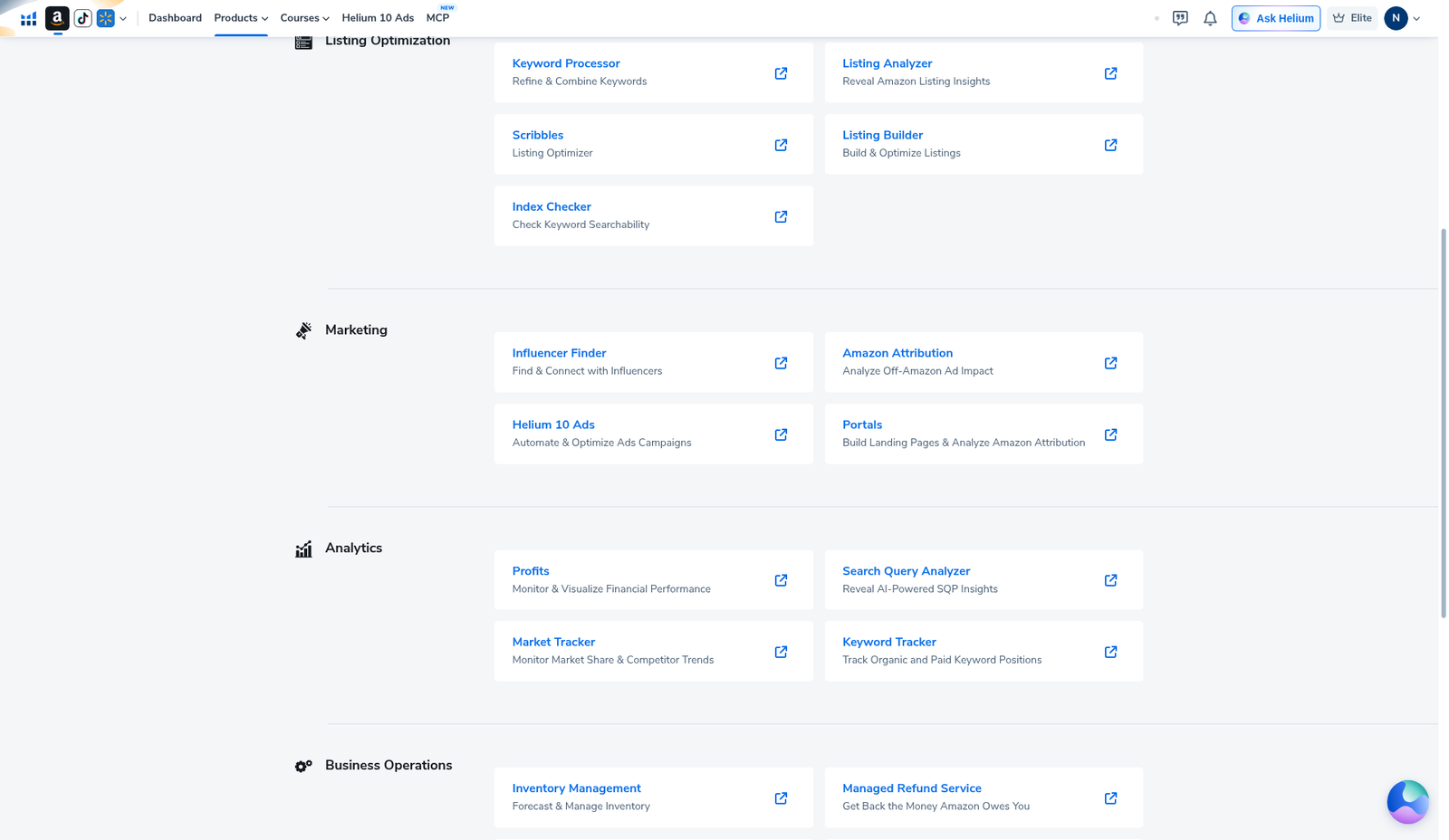
From the members area, open Site Map. Under Analytics, click Profits (“Monitor & Visualize Financial Performance”). Neighbor cards: Market Tracker, Search Query Analyzer, and Keyword Tracker.
Step 2 — Or open it from Products → Analytics
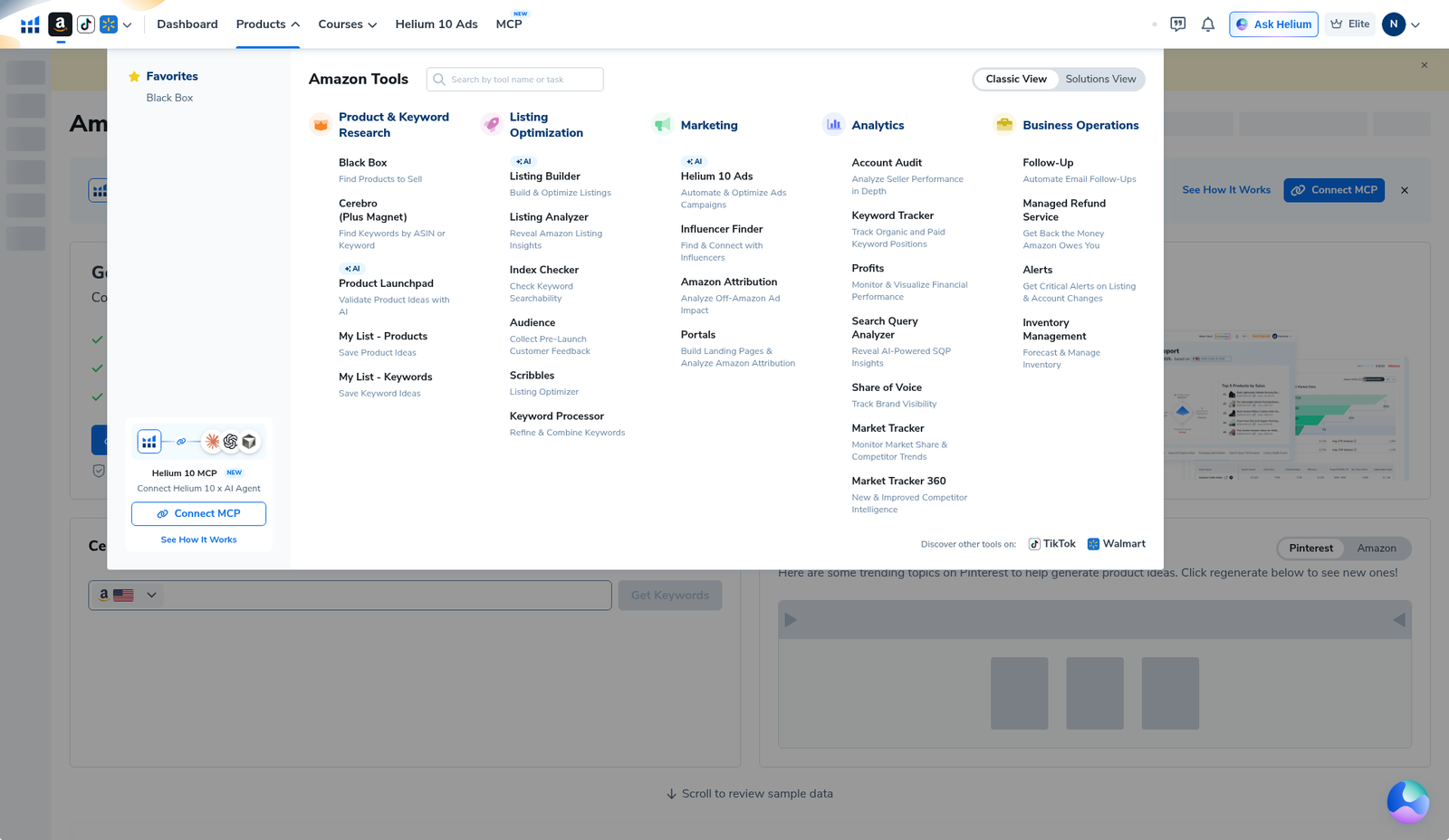
Hover Products in the top bar. In the Amazon Tools mega-menu, the Analytics column lists Profits (“Monitor & Visualize Financial Performance”). The Connections page behind the menu still showed empty seller / PPC prompts on our account—another signal that financial tools stay gated until you link a seller.
Step 3 — Land on /profits/landing (no live dashboard yet)
Going to members.helium10.com/profits redirected us to /profits/landing. The hero says Welcome to Helium 10 Profits, with a blue Connect Your Seller Account button and a How it works section of three cards. The header platform switcher showed Amazon selected, plus TikTok (NEW) and Walmart.
There was still no live chart of our sales.
Step 4 — Read the How it works cards (and ignore sample numbers)
The three cards are:
- Connect Your Seller Account — connect Amazon, TikTok, or Walmart data.
- Analyze Performance — claims secure pull of sales data down to product level.
- Improve Decision Making — decisions from facts instead of guesswork.
On card 2, the illustration shows Estimated Net Profit, Gross Revenue 8,627.23, Cost 2,464.83, and +128.12. Treat those as marketing art. They are not our account’s numbers. We have no seller linked, so Helium cannot be showing our P&L.
Step 5 — Click Connect → Amazon region picker
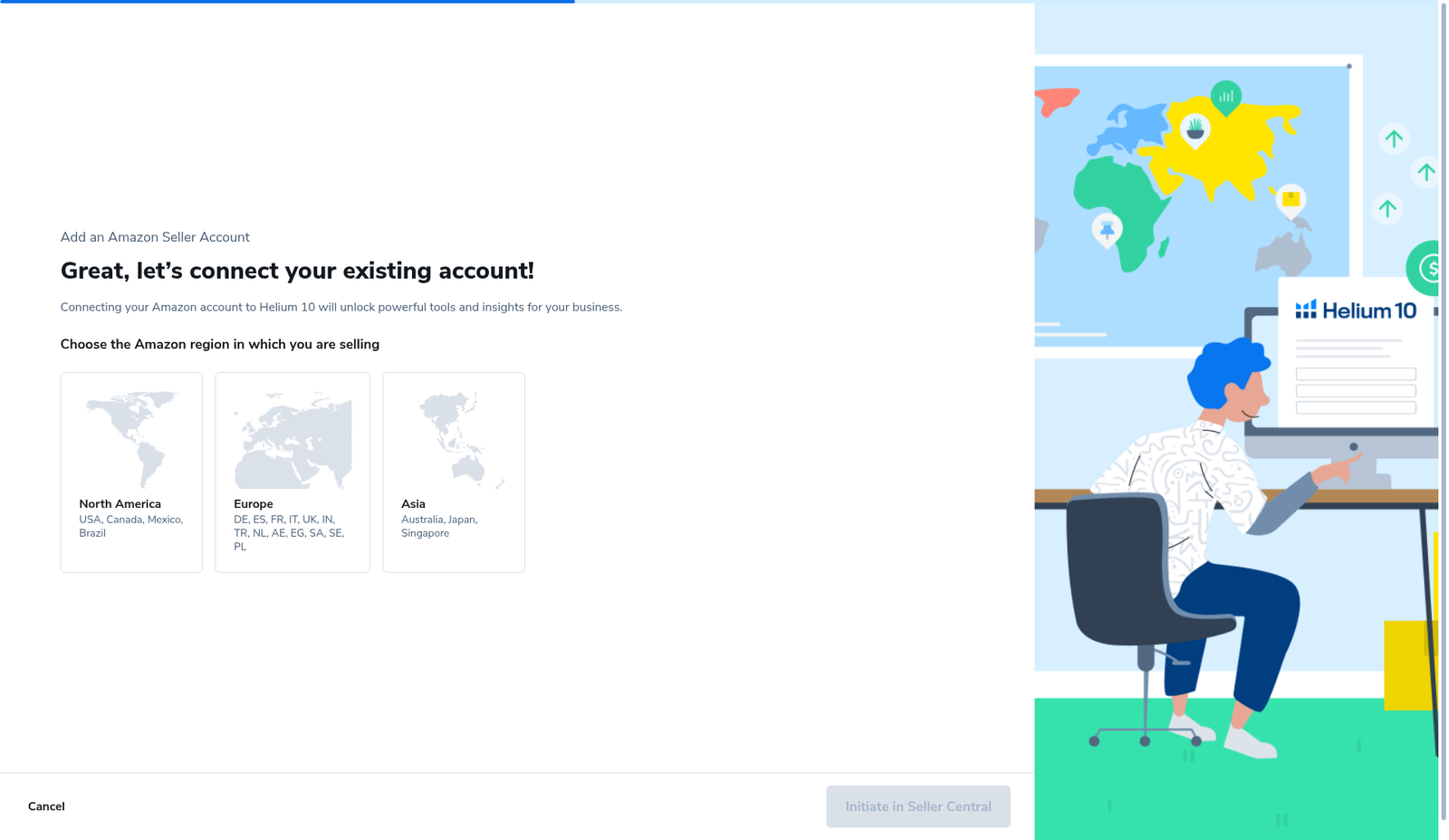
Click Connect Your Seller Account on the Profits landing (Amazon selected). You reach Add an Amazon Seller Account with the prompt to choose the region where you sell:
| Region | Markets listed on the card |
|---|---|
| North America | USA, Canada, Mexico, Brazil |
| Europe | DE, ES, FR, IT, UK, IN, TR, NL, AE, EG, SA, SE, PL |
| Asia | Australia, Japan, Singapore |
With no region chosen, Initiate in Seller Central stays disabled. Cancel backs out.
Step 6 — Select North America to enable the button (we stopped here)
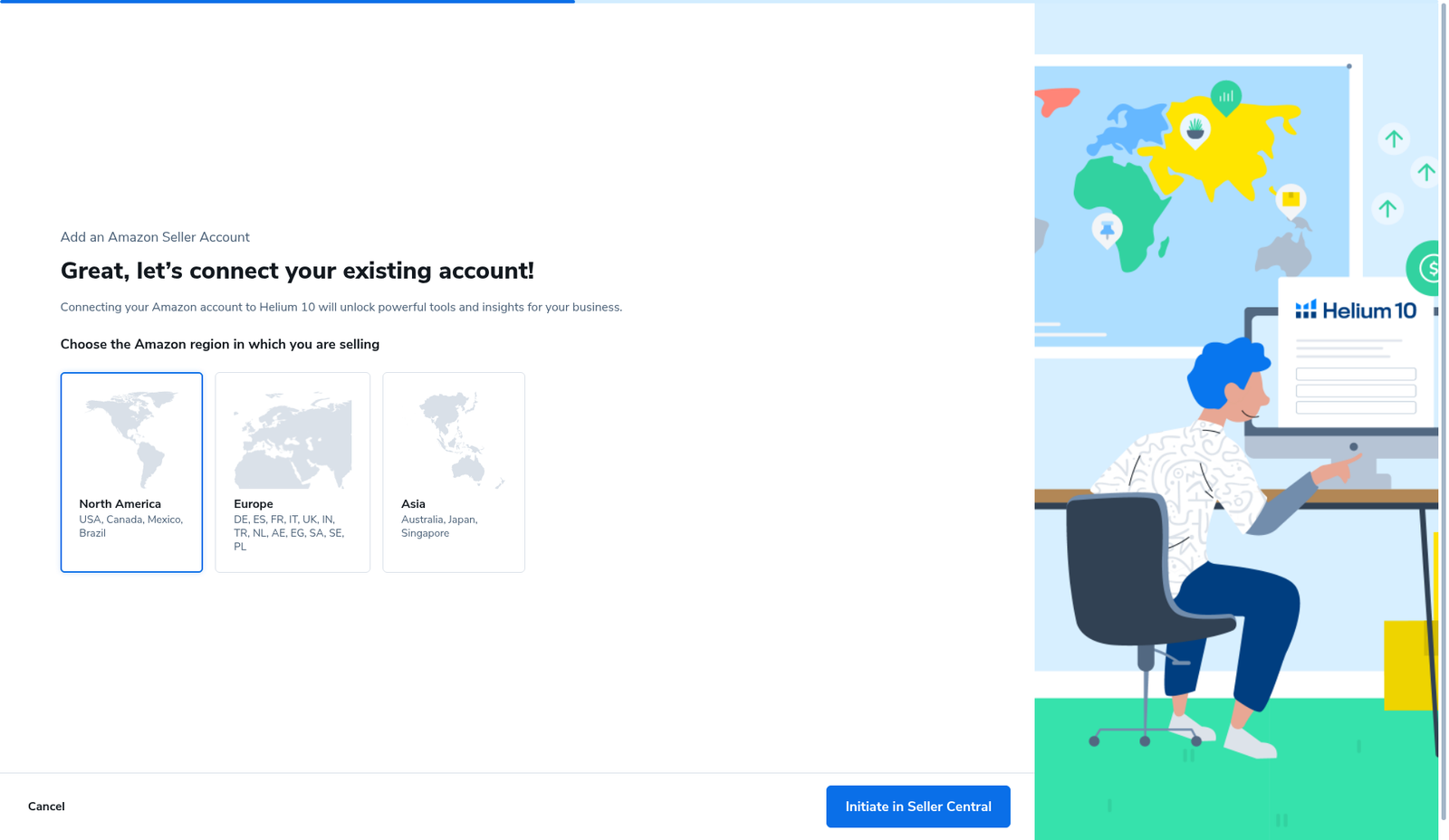
We selected North America only so the blue Initiate in Seller Central button became active. We did not click it. Completing that step would start Seller Central OAuth; we left the connection unfinished on purpose for this capture.
If you are ready to connect for real, pick the region that matches your Seller Central marketplace group, then continue OAuth in Amazon’s flow. Until that finishes, Profits will keep sending you back to the landing.
Step 7 — Confirm on Connections: no seller, no PPC
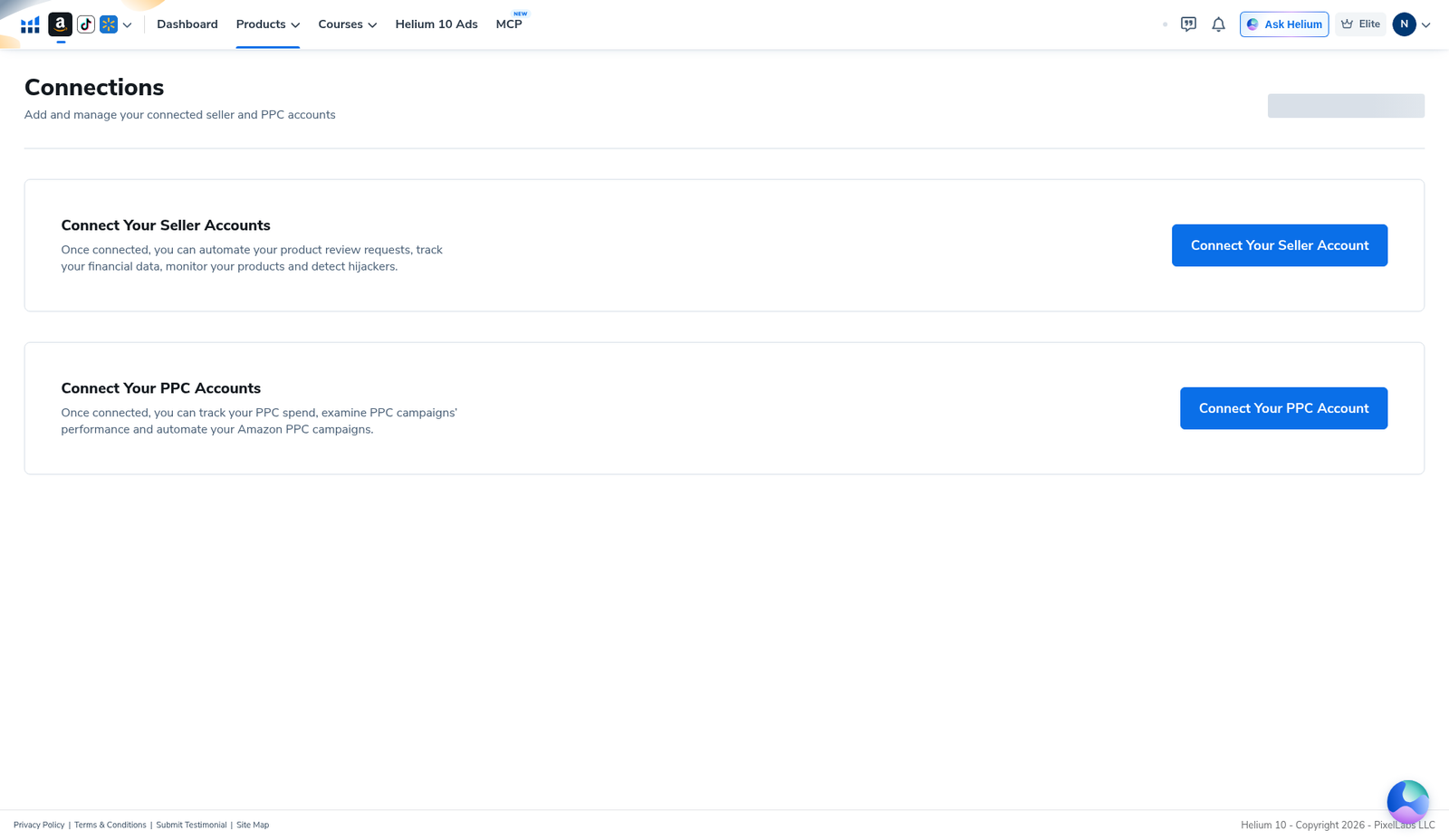
Account menu → Connections opens the connect page. Copy on the seller card says connecting unlocks financial data tracking and related tools. Our page showed empty states:
- Connect Your Seller Account — no seller linked
- Connect Your PPC Account — no advertising account linked
That matches why Profits never left the landing page. PPC connection is separate from the seller connection Profits needs for financial tracking.
What you should see after connecting (expectations only)
We cannot screenshot a live Profits dashboard from this account. Based on Helium’s own landing copy—not on our data—you should expect financial KPIs and product-level views after a successful seller link. Do not treat the sample Gross Revenue 8,627.23 card as a preview of your numbers. When you reconnect later for a follow-up guide, we will document the real date range, charts, and export controls with fresh English-UI captures.
When to use Profits (and when not to)
Use this path when you are setting up Helium 10 for the first time, need to find where P&L lives in the English UI, or want a clear picture of the connect / region / OAuth gate before you authorize Seller Central.
Don’t use this article as proof of your margins, a substitute for Seller Central reports, or a claim that Elite automatically unlocks every Profits data surface. For listing and keyword work before you have sales data, start with Xray, Cerebro, and Listing Builder.
Common mistakes
- Expecting charts on day one without connecting Seller Central—
/profitswill keep redirecting to/profits/landing. - Treating Gross Revenue 8,627.23 as your data. It is artwork on the Analyze Performance card.
- Skipping the region step. The Seller Central button stays disabled until North America / Europe / Asia is chosen.
- Connecting the wrong marketplace family (for example Asia when you sell only on US). Match the region card to your Seller Central group.
- Assuming PPC connection alone unlocks Profits. Connections treats seller and PPC as separate; Profits copy points at seller financial data.
Ready to try Helium 10?
New checkout codes we verified 2026-10-28:
Monthly: AIPILOTDAILY20 (20% off for 6 months) · Annual: prefer AIPILOTDAILY10 (≈10% forever on our annual test). Confirm on your own summary.
FAQ
Where is Helium 10 Profits in the menu?
Products → Analytics → Profits, or Site Map → Analytics. Direct path: members.helium10.com/profits (redirects to /profits/landing until a seller is connected).
Why don’t I see revenue charts?
Seller Central is not linked. Profits stays on the connect landing until OAuth completes. We verified that on an Elite account with empty Connections (no seller, no PPC) on 2026-10-28 (English UI).
Is Gross Revenue 8,627.23 real account data?
No. It appears on the landing Analyze Performance marketing illustration. Do not cite it as your P&L.
Which Amazon region should I pick?
Pick the group that matches where you sell: North America (USA, Canada, Mexico, Brazil), Europe (markets listed on the card), or Asia (Australia, Japan, Singapore). The Initiate button enables only after a selection.
Did you complete Seller Central OAuth?
No. We selected North America only to enable Initiate in Seller Central, then stopped. No seller token was created.
Can Profits use TikTok or Walmart?
The landing platform switcher lists Amazon, TikTok (NEW), and Walmart. We stayed on Amazon for the region screenshots.
Which coupon code should I use?
Monthly: AIPILOTDAILY20 (20% off for 6 months). Annual: prefer AIPILOTDAILY10 (about 10% off, ongoing, in our annual test). Annual is not 20%. Details: coupon page; link: https://i.helium10.com/jR0Z10.
Bottom line
Open Profits from Site Map → Analytics or Products → Analytics, expect /profits/landing until Seller Central is linked, pick your Amazon region, then finish OAuth only when you are ready to share seller access. For research tools that work before you connect finance data, see Xray and Listing Analyzer. Need Helium 10 access? Use AIPILOTDAILY20 (monthly) or AIPILOTDAILY10 (annual) at https://i.helium10.com/jR0Z10, and confirm on our coupon page. More: Helium 10 guides.

Leave a Reply